
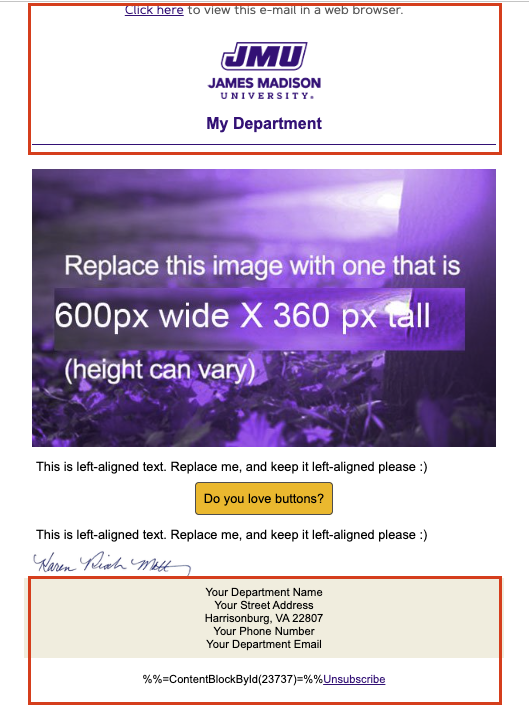
Placeholder content within any Favorite block can be edited to reflect the goals of your email. Use the following instructions to edit the images, add text content and links, and create a call-to-action button within your email.

Subject and Preheader

Subject: Email subject lines should be 40 characters or less and should be interesting and informative. See documentation for creating effective subject lines.

Pre-Header: A pre-header is a short summary of text that follows the subject line when an email is viewed in the inbox through mobile, desktop or web email clients. Pre-headers give the recipient s sneak-peek of what the email contains before they open it.

How To: Edit Email Subject/Preheader

  1. At the top of the email content editor, you should see fields for Subject and Preheader.
  2. Enter content and select Done to save your changes for each field.

Headers and Footers

Email headers and footers are critical for brand recognition, legal compliance, and security. Your starter template should already have the appropriate content applied to the header and footer sections of your email.

DO NOT make changes to email headers or footers.
If you need to update the header or footer of your email OR make changes to your starter template, please contact digitalmarketing@jmu.edu.

The header often contains the JMU block logo followed by the sending department's name. The header should clearly identify the email as coming from a specific JMU sender. The footer provides contact information for the sending department and must contain the department name, address, phone number, email address, and an unsubscribe link. 

Screenshot showing the header and footer sections of an email outlined in red.

Images

Most starter templates include a hero image, or have another content block with a placeholder image. Additional full-width images can be added as additional "Hero" images available in the Favorite Blocks.

NOTE: Images should be used to enhance your message, not replace it. For accessibiity compliance, do not rely upon images to convey important content within your email. 

HOW TO: Replace Placeholder Images

  1. Click on the image block. When selected, the image will be highlighted in grey and the WYSIWYG editing pane will open on the left.
  2. Click Replace.  
    • Uploading a new image:
      1. Navigate to the "_images" folder inside your department folder. All images for your department should be uploaded here.
      2. Either drag-and-drop your image from your desktop onto the window, OR click Select Action in the center of the screen and “Upload” to select your image. Your image will then appear in the "_images" folder.
      3. Click on your image and click the Select button on the bottom right. The image in your email will update with your image.
    • Already uploaded an image?
      1. Navigate to the folder where your image is stored - this should be the "_images" folder for your department.
      2. Click on the image and then click the Select button in the bottom right.
  3. Update the Alt Text for the image in the editing pane. Review Best Practices for Alt Text
  4. Click Done Editing to save your changes image.

Text Content

The text content of your email should convey your message clearly and concisely, using accessible formatting options such as heading styles, paragraph alignment, bold or italics, and bulleted or numbered lists. Words or phrases can also be made into text links.

How To: Edit Text

  1. In the Content Editor, hover over the content you wish to edit - it will highlight in grey and display a message. For example the message may say, "Text (Click to edit)" or "FreeForm (Click to edit)".
  2. Click to edit the content. The WYSIWYG editing pane will open on the left side of your screen.
  3. Edit the text using the WYSIWYG editor.
    • Copying content from another source?
      Use "Paste as Plain Text" or "Paste from Word" to remove problematic formatting from the source document:
      1. Click the arrow to the right of the toolbar to expand the toolbar.
      2. Click the Paste icon and select "Paste as Plain Text" or "Paste from Word".
      3. Use the formatting options within the editor to stylize your text.
  4. Format text using the toolbar.
  5. Click Done Editing to save your changes.

How to: Add text links

  1. In the WYSIWYG editing pane on the left, select the text you want to link.
  2. Click the link icon in the editor toolbar.
  3. Slect the approrate “Link to” type for what you’re trying to do. Common types of links:
    • “Website” or “Secure Website” for most websites:
    • “Email Address” for linking to an email address.
  4. Complete the necessary fields:
    • In the Link URL or Address field, paste in the appropriate URL or email address.
      • (optional) For email address links, you can specify the Subject Line that will prefill when the link is clicked.
    • In Link Text, confirm that the text is how you want the link to appear in the email.
    • Ensure that the Link Color is #450084 and the checkbox for “Include underline on hyperlink”  is checked (these are set by default in Favorite Blocks).
    • Leave the Title blank.
    • Tracking Alias should be used to help differentiate between clicks in your email analytics. If your email includes multiple links using the same linked text OR to the same URL, enter a unique alias for each link that is descriptive enough to help you differentiate between them in your analytics. The Alias field will populate with the link text by default.
  5. Click OK to save.

Call-to-Action Button

Buttons in emails are clear Calls to Action (CTAs), directing the reader to take a specific action (ie. read more on a webpage, sign up for a mailing list, share feedback etc). Starter templates include placeholder buttons that you can edit to fit your email message's call to action.

With CTAs, fewer is better. We recommend having ONE clear CTA. Generally, the more options you provide your reader in terms of buttons and links, the less total engagement you will have in your email. It's behavioral psychology - the more options provided, the less likely a person is to the particular action you want. You should also avoid having multiple links in your email going to the same content. Read more about email CTAs

How To: Edit a CTA Button

NOTE: Only Favorite Blocks should be used to create a button. See how to add a Favorite Block.

  1. Click on the button in the email editor. The content editing pane will open on the left.
  2. In the "Text" section, edit the Button Text - this is what will display on the button.
    • For accessibility compliance, button text should be descriptive. Review the Fundamentals Guide for creating accessible links and buttons.
    • DO NOT edit the font, sizing or color.
    • DO NOT adjust any settings within the "Style" section (ie. alignment, colors, padding, or border settings) - these are predefined according to brand guidelines.
  3. In the "Link" section, edit the fields according to your CTA goals:
    • Select the approrate “Link to” type for what you’re trying to do:
      • “Website” or “Secure Website” for most websites.
      • “Email Address” for linking to an email address.
    • In the Link URL or Address field, paste in the appropriate URL or email address
      • (optional) For email address links, you can specify the Subject Line that will prefill when the link is clicked. 
    • Leave the Title field blank.
    • Tracking Alias should be used to help differentiate between clicks in your email analytics. If your email includes multiple links using the same linked text OR to the same URL, enter a unique alias for each link that is descriptive enough to help you differentiate between them in your analytics. The Alias field will populate with the link text by default.
  4. Click Done Editing to save your changes. The editing pane will close.

Back to Top