


Starter templates include commonly used content sections to help you get started quickly. In this section, you’ll learn how to further customize your email by adding additional content blocks and adjusting the layout.
Think of your starter template as the foundation. Here, we’ll show you how to build on it by adding new elements using Favorite blocks.
Your starter template should provide most of the content areas required for your email, but there are other approved content types that have been created, reviewed, and tested against university brand guidelines and accessibility compliance.
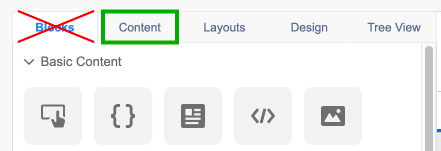
DO NOT use content from the "Blocks" tab in the email editor. These have not been configured for our emails and may cause formatting issues. Only use the approved content types.
Use Favorite Blocks
Unversity Marketing & Branding has created and tested saved elements for you to use as Favorite Blocks. Favorite Blocks include buttons, images, text boxes, dividers and other commonly used email elements.
HOW TO: Add a Favorite Block to your email
- From the content editing pane on the left, click the "Content" tab and "Folders". The folder structure for local folders will appear.
- Expand the "_Favorite Blocks" folder. Blocks are organized by email sections - you should see folders for Body, Footers, and Headers.
- Click on a folder to see the available blocks. For example, clicking on the "Body" folder shows a variety of content blocks that are ready to be added to the body of any email.
- Find the content block you want to add, then click and drag it onto your email. As you drag the block over, you will see a blue highlight where the block will be inserted between existing content.
- Drop the content block in the desired location. You may then follow these instruction to edit placeholder content.
WARNING: DO NOT delete content from the Favorite Blocks folder - this will delete the content entirely, making it unavailable to other users!
After adding content blocks to your email, you may need to adjust the content arrangement or layout by moving, duplicating or deleting blocks.
HOW TO: Move/Rearrange Content
- In the Content Editor, click on the content block you want to move. It should highlight in grey.
- Drag the content block to where you’d like it to be within your email. You will see a thin blue line that shows where the block will go.
- Drop the content block in the desired location.
HOW TO: Duplicate Content
- Hover over the content block you want to duplicate.
- Click the arrow that has a circle around it to open the menu.
- Click Duplicate. The duplicated content block will appear adjancent to the original one.
HOW TO: Delete Content
- Hover over the content block you want to remove.
- Click the arrow that has a circle around it to open the menu.
- Click Delete. An alert will appear above the content block. Make sure you really want to delete the block - deleting cannot be undone.
- Click Delete again to confirm this change.


Hours of Operation:
Mon - Fri 8 a.m. - 5 p.m.


