


-
Please book your exams as soon as you know the test date.
-
We recommend using the syllabus from your classes and scheduling all your exames at the beginning of the semester. This ensures you get the exact time, date and test center you want.
-
We will not schedule an exam to be taken on the same day you request it.
-
Accommodate will not allow a reservation to be made if your exam is less than 3 days away. You will need to call the ODS testing center to schedule.
How to Book an Exam:
Step 1: Log into Accommodate
- Log into MyMadison
- Click on the Student tab at the top of the window.
- Click on the Accommodate logo to access the student portal.
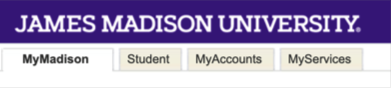

Step 2: Locate the Testing Room modules
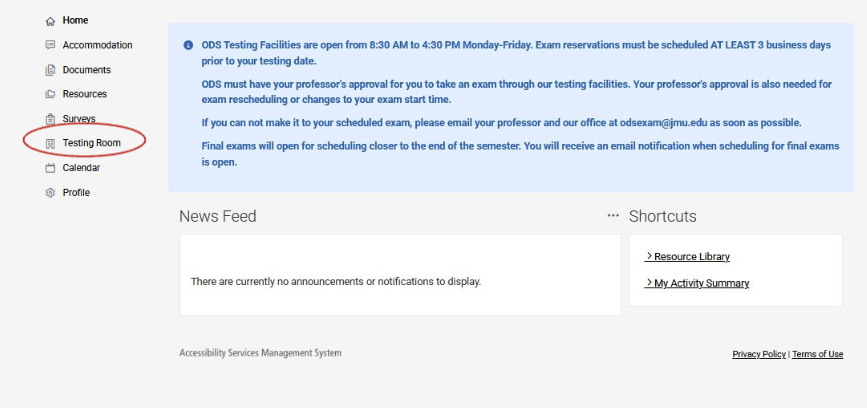
- Select "Testing Room", which is located on the menu on the lefthand side.
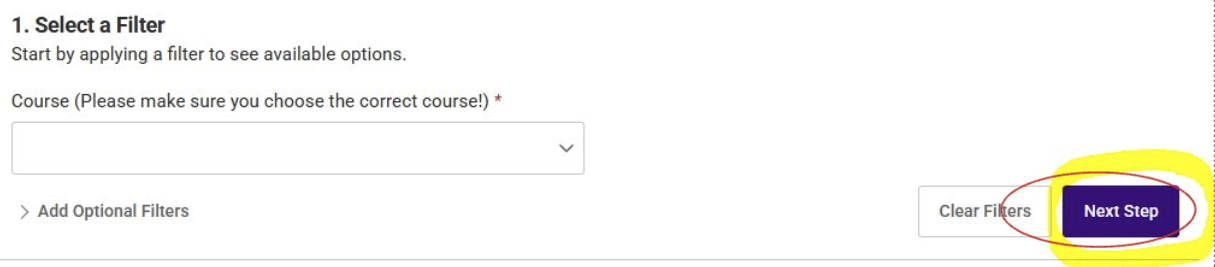
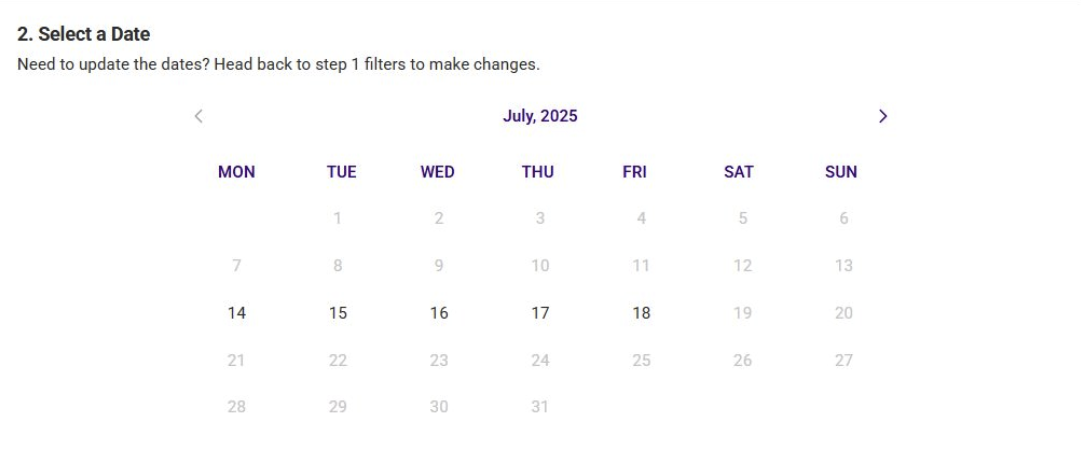
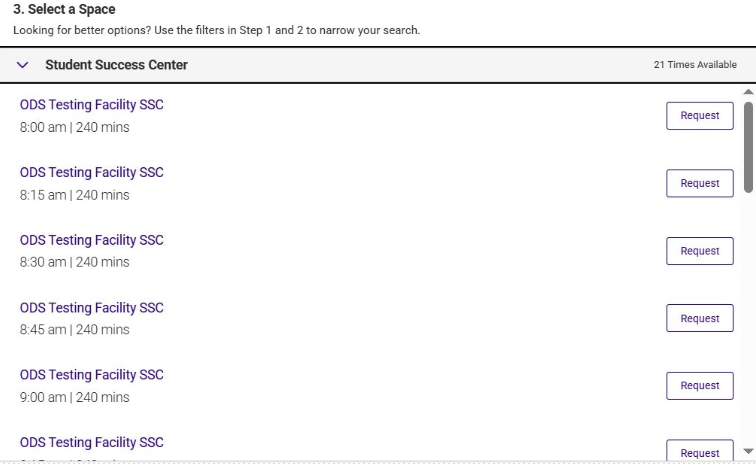
Step 6: Fill in the information on the Confirm Exam Booking screen.
-
Type the name of your exam (refer to syllabus if necessary)
-
Uncheck any accommodation you do not plan to use for this exam.
-
If you do not see an accommodation you need, please write it in the additional comments box along with any other information you would like us to know.
-
Type your name (electronic signature) > click "Submit Request"
-
An email is sent to your professor notifying them of your request.
-
Your request will remain in "pending" until both your professor and ODS approves it. This usually happens 1-3 days prior to your exam.
-
You will receive a confirmation email when the reservation is approved.


