Overview
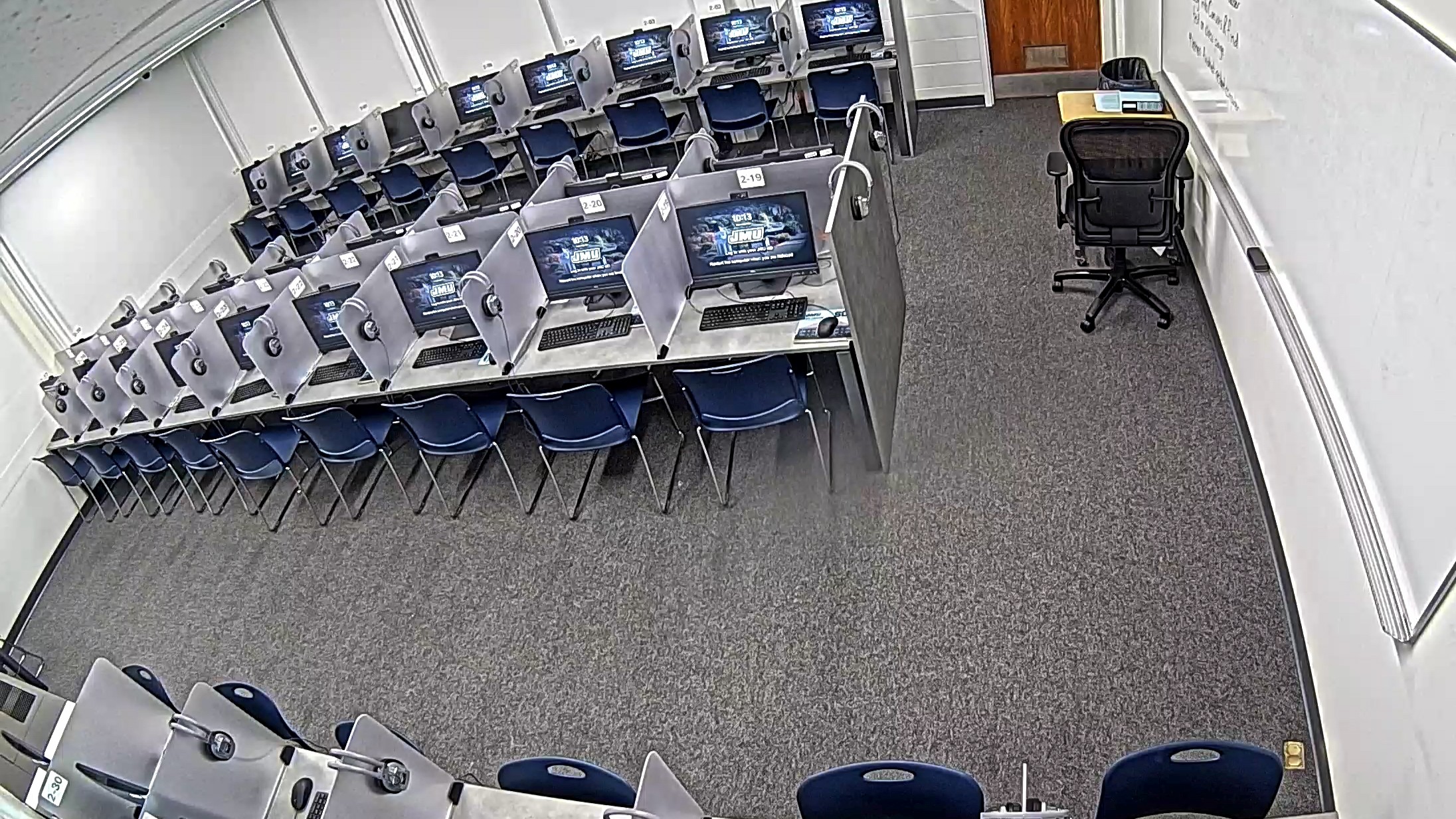
The Assessment & Testing Center, located on the ground level of Gabbin Hall, is an assessment lab in three separate rooms used solely for computer-based testing and assessment. Students can drop in for assessment testing during scheduled hours. Faculty members can also reserve the lab for group testing.
All tests are monitored by trained student assistants in the room(s) as well as staff remotely monitoring via cameras. Rules are enforced to maintain a consistent testing environment and uphold the JMU Honor Code. Attendance is tracked and all students who enter the lab must log both time in and out. Faculty members can also send rosters and request updates on which students have taken specific tests.
The lab is equipped with 103 computer workstations with built-in webcams separated by plexiglass dividers. There are 37 workstations in room G1, 34 workstations in G2, and 32 workstations in G5. Students needing special accommodations should send requests to testingcenter@jmu.edu.
Contact Information, Hours & Rules
Contact Info:
Phone: 540-568-6814
Email: testingcenter@jmu.edu
Hours:
Monday-Friday
9:00 a.m.-5:00 p.m.
Rules:
-No talking in the testing room(s)
-No electronic devices
-No headphones unless required by the assessment
-No food or drinks without lids permitted in the main area of the lab
-Tests that allow multiple attempts can only be taken once per 24-hour period unless otherwise noted
-No other browser windows can be open while tests are in session
-No study material permitted unless otherwise noted
-No bathroom breaks while taking a test-
Who can use this service?
JMU faculty and students
How can I get this service?
Walk-In Testing:
Reservations can be handled on either a walk-in or appointment basis. For walk-in testing, faculty can submit class rosters, test instructions, and available testing dates and we'll handle the rest! Students can arrive during normal operating hours and tests will be administered and proctored. Faculty can receive roster updates upon request and be notified of students who have not yet taken an assessment. This method eliminates the need to use class time for testing.
Class Reservation Testing:
Faculty can reserve group seating to administer tests as a class during normal lab operating hours. This guarantees a number of seats to accommodate a class. Note: multiple classes may be seated adjacent to each other. Walk-In testing may be in progress for other tests, but will be primarily in the other ATC room(s). Reservations can be made for up to 70 seats (G1 and G2 combined).
A faculty member or department representative should be present to proctor Class Reservation Testing. Staffing is available if additional proctors are needed.
Recommended Canvas Settings:
The two recommended settings are the IP Filter and Respondus Monitor. Both settings appear to work with both Classic and New Quizzes.
The IP Filter restricts access to computers based on their IP address. While a test access code can become compromised and shared with other students, the IP Filter denies access from any location not specifically allowed. There is a search function so you can pick if you want an assessment available in the ATC or ODS, however, you can also manually enter an additional address to make the same assessment accessible in both the ATC and ODS, but nowhere else. Note, if using two or more locations place a comma only between IP Addresses, including spaces will cause the IP Filter to display an error that it is not valid. The options would be:
- ATC Only: 134.126.251.128
- ODS Only: 134.126.252.26
- ATC & ODS Only: 134.126.251.128,134.126.252.26
Respondus Monitor adds an additional level of monitoring of student activities while taking an assessment. While the ATC staff are monitoring all of the students, Respondus Monitor focuses on the student at that specific workstation. Webcam Only can be used to help add additional levels of identity verification in the event there is any question about who took a specific student’s assessment. Webcam + Screen can flag events that may trigger unexpected events that may bypass normal Respondus restrictions such as managing to open multiple tabs inside of Respondus. Under Startup Sequence, the main options to consider are:
- Student Photo – Takes a photo of the individual taking the assessment.
- Show ID – Requires the student to present their physical JMU Access Card (JAC) to the webcam.
Environment Check – Not recommended for assessments that allow notes, scratch paper, calculator, etc. due to potential of false positive flags. - Face Detection Options:
Notify student during exam if face cannot be seen clearly in video – Not recommended for assessments that allow notes, scratch paper, calculator, etc. due to potential of false positive flags.
Special Reservations:
Special Reservations can be made to provide testing outside of normal lab hours. To discuss options, email testingcenter@jmu.edu.
Where can I get help/support?
FAQs
What do I do if I need special accommodations?
Students registered with the Office of Disability Services have the option to complete assessments with either the Assessment & Testing Center or the Office of Disability Services (ODS). If students intend to take an assessment at the Assessment & Testing Center and require additional accommodations, such as a screen reader, please contact testingcenter@jmu.edu. State the needed accommodation and the test you would like to take in order to make an appointment. Please note that Testing Center staff may contact ODS to verify the accommodation.
Accommodations that cannot be made by the Assessment & Testing Center will be referred to the Office of Disability Services.
What hardware is supported in the Assessment Center?
103 Dell OptiPlex computers. The computers are set to restart after periodic inactivity, clearing all personal data saved locally.
What software is in the Assessment Center?
MS Windows, MS Office, Respondus LockDown Browser, and Google Chrome.
Can I generate tests using Canvas or Respondus?
Yes, faculty are encouraged to generate tests using Canvas or Respondus. This will ensure secure testing and completed assessments are accessible to the faculty member immediately after the test is submitted.
Can I use an access code to prevent students from taking my assessment unproctored?
We strongly discourage the use of access codes. Access codes can become compromised and shared between students, allowing them to take the assessment unproctored. The IP Filter is a much more reliable way to prevent students from being able to take an assessment unproctored.
What formats are tests accepted?
Tests can only be accepted in a computer-based format such as Qualtrics, Canvas or Respondus. This will ensure secure testing and completed assessments are accessible to the faculty member immediately after the test is submitted.
Will you accept paper-based tests?
No. Paper-based tests cannot be accepted because we do not have the means to deliver completed exams.
What if I have a “hold” place on my account?
“Holds” are placed by the respective department whose requirement has not been met (i.e. University Studies places holds for MREST tests, UBO places holds for overdue tuition, Parking Services places holds for unpaid parking tickets, etc.). The hold will only be lifted when the requirement is met.
When a hold is placed, a student cannot register for classes, make any changes to account settings or information, use university services or receive their diploma until the hold is removed. All students are responsible for monitoring MyMadison to make sure requirements are met. Account holds will appear under the Student Center in MyMadison along with information regarding what the hold is for.
The Assessment & Testing Center has no way of placing, removing, or adjusting holds.
Are restrooms available in the Assessment and Testing Center?
Yes. There are restroom facilities on the ground floor of Gabbin Hall. Test takers should be sure to use the facilities if needed prior to taking their test.