


Strategic Communications manages the review, approval, and distribution to ensure that messages meet institutional standards and reach the appropriate audiences.
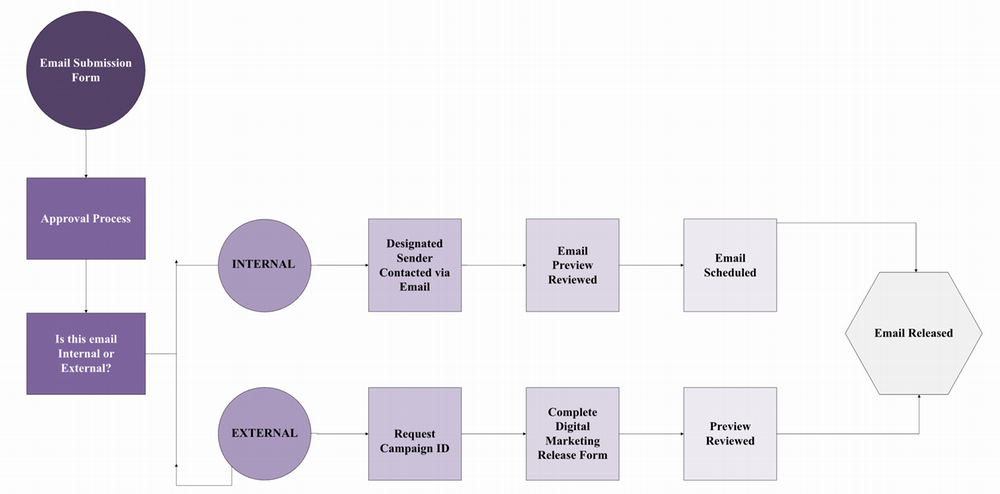
Process Timeline
Complete all submissions four business days before your desired send date. Ensure email tests are sent two business days prior to allow time for any needed revisions or improvements. Campus partners who do not follow the specified timeline will receive a denied status for their email submission.
Getting Started
Before submitting an email submission, ensure you have the following prepared:
- Generate email name using the naming convention
- Clear purpose (announcement, event, newsletter, etc.)
- Defined audience (students, faculty/staff, donors, parents,etc.)
- Desired send date
All submissions, questions, and updates should be sent to: jmunews@jmu.edu.
Step-by-Step Email Process
Submit your email submission through the designated form.
Include:
- Submitter info. (name, address, number, and department)
- Email content description (purpose and importance of content)
- Target audience/specifics
- Desired send date/ day of week/ time
- Supporting assets (images, graphics, documents)
- Frequency (recurring or one-time)
- Sender/Content Creator information
Incomplete submissions may delay review or require follow-up.
Note: Each department has a designated sender (the person who clicks send in Marketing Cloud) and a content creator (the person who designs the email content). If your department lacks the expertise or manpower, Strategic Communications will fulfill these responsibilities for you. If you seek to obtain access for a sender or content creator, please contact your governance representative and submit the request form for new Marketing Cloud Users.
Strategic Communications reviews each submission using internal workflow tools. Evaluation includes:
- Alignment with strategic priorities
- Audience appropriateness
- Content clarity and readiness
- Placement is determined (e.g., Inside JMU, roll-ups, targeted sends)
- Approved – moves forward to build and testing
- Modification Needed – feedback provided; submit revisions
- Revisions are submitted to jmunews@jmu.edu to avoid campus partners having to resubmit their initial submission. Strategic Communications will update the email submission for campus partners based on email correspondence.
- Denied – submission does not meet distribution criteria
- Roll Up – submitted to Inside JMU, Dukes News, or Forward to Other Areas
Note: All possible outcomes send an automated message when the submission status changes. For submissions marked “Modification Needed” or “Denied,” the automated message will also include a personalized explanation for campus partners.
Automated Message Example:
- Approved Message: “Request is approved, please create content in marketing Cloud. As a reminder, the email draft is due to Strategic Communications 48 hours prior to send time.”
- Modification Needed Message: “Request needs modification; see the highlighted sections of the form that need revision to move forward with this request.” OR “we forward email back to requestor and identify fields that need to be revised.”
- Denied Message: “Request is denied. Feel free to reach out to Strategic Communications about why the request was denied.”
- Email is built within Marketing Cloud by a designated content creator.
- Test send is issued to confirm formatting, links, accessibility, and accuracy.
- Instructions on how to send a test email are below:
- Navigate to Email Studio: Hover the mouse over Email Studio and select Email.
- Locate your Email: Click the Content tab, then locate your email in the Local/Shared folder.
- Select Email: Click the drop-down arrow on the right side of your email. Select Preview and Test.
- Choosing Recipients: Click the letter icon. Input email addresses that you want to send the test email to, in addition to jmunews@jmu.edu. Ensure the From Name and Sender Profile sections are completed correctly.
- Send Test: Click the Send Test button at the bottom. Then, review Test Send Summary.
- Instructions on how to send a test email are below:
- Strategic Communications review test version.
- Revisions are made as needed. All revision requests are communicated via automated messaging, with detailed corrections, to the submitter of the initial email submission.
Automated Message Example(s):- Denied Message: Thank you for submitting your “test send” to Strategic Communications. Before your email can be sent, some modifications are required. Strategic Communications will contact you directly with the details. After making the changes, re-send the test email and wait for approval before proceeding.
- Under Review Message: Thank you for submitting your “test send” to Strategic Communications. Your “test send” is under review, and you will receive further communication within 24 hours confirming whether your content is approved or denied. If you do not receive correspondence within 24 hours, please contact jmunews@jmu.edu for an update
- Additional test sends may occur until the test is finalized.
All test sends should be sent to jmunews@jmu.edu.
Before deployment:
- Final approval is confirmed.
- Email is scheduled in Marketing Cloud.
- Instructions on how to schedule an email:
- Navigate to Email Studio: Hover the mouse over Email Studio and select Email.
- Locate your Email: Click the Content tab, then locate your email in the Local/Shared folder.
- Select Email: Click the drop-down arrow on the right side of your email. Select Send.
- Define Properties: Ensure From Name and Sender Profile sections are completed correctly.
- Select Audience: Select the correct data extension. Click and drag the populated subscription list into Targeted section.
- Configure Delivery: Click Schedule. Select the Date and Time.
- Instructions on how to schedule an email:
Note: Strategic Communications will instruct campus partners to cancel scheduled emails due to emergencies or email volume concerns. Therefore, providing accurate information to Strategic Communications is imperative.
- Instructions on how to cancel an email:
- Navigate to Email Studio: Hover the mouse over Email Studio and select Email.
- Navigate to Interactions: Click the Interactions tab, then click the drop-down and select Salesforce Send Emails.
- Locate scheduled email: Click View Active Sends tab.
- Cancel scheduled email: Select the correct email. Ensure the green check is next to selection. Then, click the Cancel Send button above. Remember to confirm decision in the pop-up.
- Ensure cancellation: Refresh your browser to see email status change to Canceled.
Once all checks are complete:
- Test Send is approved by Strategic Communications.
- Email is sent or scheduled in Marketing Cloud.
- Delivery is confirmed in the system.
- Internal (calendar) tracking is updated by Strategic Communications.
- Email is archived for reference and reporting by Strategic Communications.
Content & Distribution Guidelines
- Use concise, clear messaging
- Verify all dates, times, and URLs
- Review desktop and mobile email previews
- Follow university branding and accessibility standards
- Submit requests early to allow for review, revisions, and testing
Emails Built by Strategic Communications
Emails constructed by Strategic Communications on behalf of campus partners are stored in the shared folder accessible across business units using the naming convention generator to support reporting, reuse, and navigation.
Pre-Approved Campus Partners
Strategic Communications and the Communication Governance have identified certain campus partners who will maintain a “pre-approved” status for email communications. However, all pre-approved campus partners must submit an email submission form for tracking purposes.
Support & Questions
For help with software access, contact MarketingCloudAccess@jmu.edu.
For information about submissions, revisions, or troubleshooting, contact: jmunews@jmu.edu