The following recommendations can help you provide accessible music instructions. Using accessible music scores, clearly explaining symbols and steps, describing visual elements with text and alt text, and ensuring content usable for all learners.
Key Strategies to Music Accessibility
To help guide your process for making digitally accessible music courses, we provide the following basic strategies. Please keep these concepts in mind in developing your online music course:
- Provide options for meaningful interpretation of important elements in sheet music not reliant on vision.
- Provide options for meaningful interpretation of important elements in musical audio recordings not reliant on hearing.
- Provide options for students to engage and contribute to course activities that make allowances for the above considerations.
Ultimately, the best first strategy you can take to make your music course accessible is to explore options.
Music Score and Sound Accessibility
The relationship between the visual (score) and audio (recording) representations is one of the most readily available resources that can be used when making music lessons Accessible for students. In terms of theory and analysis lessons, consider times when having the student interact with the score may take the place of a listening-based assignment while allowing students to make necessary conclusions and interactions with the lesson material. Similarly, consider times when having the student interact with a recording may take the place of sight-based activity such as some elements of score analysis.
Some example analysis elements where the score could be a substitution for the recording:
- Form and Structure
- Counterpoint / Interplay of melodies
- Instrumentation
Some example analysis elements where the recording could substitute for the score:
- Instrumentation
- Form and Structure
- Harmonies
Considerations for Switching Score and Sound
- This approach is one of the simplest alterations that can be done. Scores and related recordings are often very easy to acquire.
- The foundational skills of listening and score analysis are covered in the earliest stages of music theory, which should provide a reasonable backbone for this approach to creating an accessible music assignment.
- However, since this exchange of media requires some foundation in listening or score analysis, very early introductory work may require modified strategies to help work with a lack of skill foundation.
- There may be some scenarios where you as the instructor would not want a listening assignment in place of score analysis, and versa. Ultimately, as the instructor, it is up to you to determine if and when substituting a score-based assignment or recording based assignment would be appropriate to gauge the student’s mastery of the key learning goals.
Describing Musical Examples with Text and Alt Text
As discussed in the JMU resource on Image Description and Alt Text, meaningful alt text provides a ready means for screen reader users to understand the content of an image. Since one of the most common displays of notation in music courses is done using images of scores and excerpts, alt text is another useful tool. Using International Standards Notation, Interval notation, and similar text-based notation typically used for theory/analysis, this method can be used to provide meaningful data for small musical excerpts.
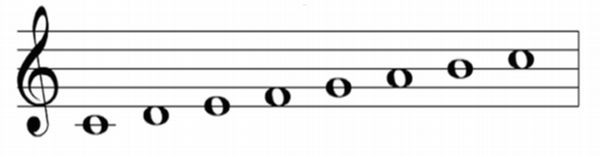
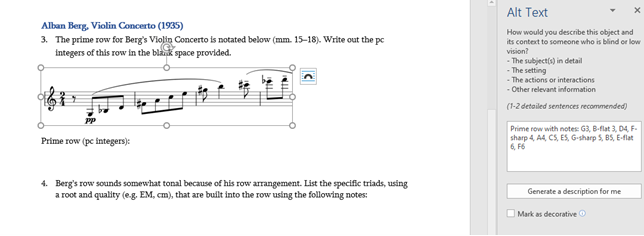
How to Write Musical Alt Text for Screen Readers
When writing alt text, you may have to adjust the text as if It were read aloud. This will compensate for the common translation errors that screen readers have with music. Below are some common Issues and the Solutions we suggest:
- Issue: Special characters like sharps and flats may be read as “number sign” or “b”
- Solution: Write accidentals with their verbal representations: Sharp, Flat, Natural, etc.
- Ex. “C-Sharp” as opposed to C#
- Solution: Write accidentals with their verbal representations: Sharp, Flat, Natural, etc.
- Issue: Screen readers often don’t distinguish upper-case and lower-case characters.
- Solution: Write intervals verbally such as “Major second interval” as opposed to M2 (screen readers typically won’t distinguish as an upper-case M)
- Issue: Depending on setting, many screen readers skip certain special characters and punctuation.
- Solution: Write out the notation or analysis elements verbally, as if it was read aloud.
- Ex: Write scale degrees using text like “Scale Degree 2” rather than using carets over the numbers which may not be read.
- Ex. Write out chords or Roman numeral analysis verbally (C minor, or Half-diminished seventh two) to avoid relying on symbols or numbers that may not be read appropriately for the musical setting.
- Solution: Write out the notation or analysis elements verbally, as if it was read aloud.
Things to Consider with Text and Alt Text
- Best practice recommends concise alt text, so the process will likely work best for small excerpts of music.
- Since alt text should be concise, consider the most important information that you wish to convey in any given example. For lengthier examples requiring descriptive text, consider a detailed description below the image with brief alt text pointing to the description.
Screen Reader with Notation Software
MuseScore is an open source and free notation software available online. As of version 4, it comes with support for screen readers. However, MuseScore's support for JAWS is not currently as good as it is for Narrator or NVDA on Windows.
See MuseScore’s Accessibility Page for a guide to accessibility, focusing on navigation and usage with screen readers.
MuseScore for Score Reading
Using MuseScore files you can present score excerpts, musical examples, and even exercises to students via screen readers. You can create examples yourself in MuseScore, or provide previously created files such as MusicXML.
Students relying on screen readers can refer to the MuseScore Accessibility Page for guidance on Score Reading with a Screen Reader.
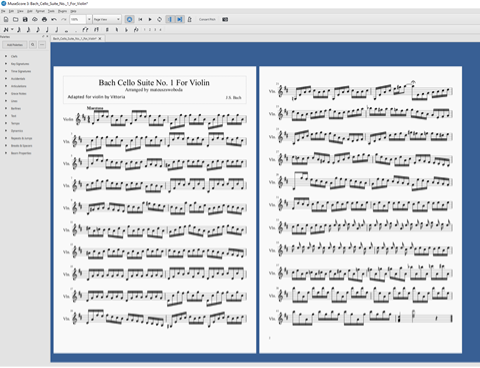
MuseScore for Note Input and Composition
MuseScore’s functionality as notation/engraving software is fully accessible with the supported screen readers. Students relying on screen readers will be able to use MuseScore for composition elements as well as many theory assignments relying on note input (intervals, harmonization, counterpoint, etc.). For theory assignments, you may likely need to recreate or modify the assignments into MuseScore files if they are sourced from worksheets or other sources. (Be sure to privately hold these materials for screen reader users to request so as to maintain Copyright Compliance).
Students relying on screen readers can refer to the MuseScore Accessibility Page for guidance on Score Creation and Editing with a Screen Reader.
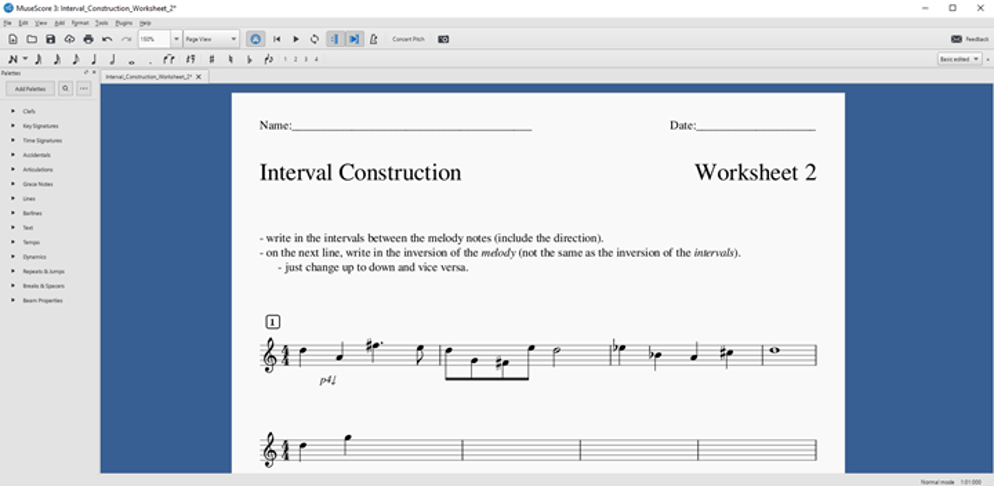
Considerations for Screen Reader Integration
- This is perhaps the best and most cost effective way to offer score interaction and composition for students with screen readers. The process may prove longer when using a screen reader, so completion time may need to be extended for in-depth assignments.
- Preparation time may be required to either retrieve or create necessary examples/scores/assignments.
- There are many existing scores available created by the MuseScore community, but some may require purchasing on the MuseScore community site. One of the best options may be to rely on MusicXML files instead.
- In all cases, be sure to review these scores in MuseScore to ensure accuracy for your students.
Adapted from “Music Accessibility,” Division of Strategic Educational Alliances (SEA), University of North Texas. This guide is edited by JMU faculty for JMU faculty.