


Accessing Student Center
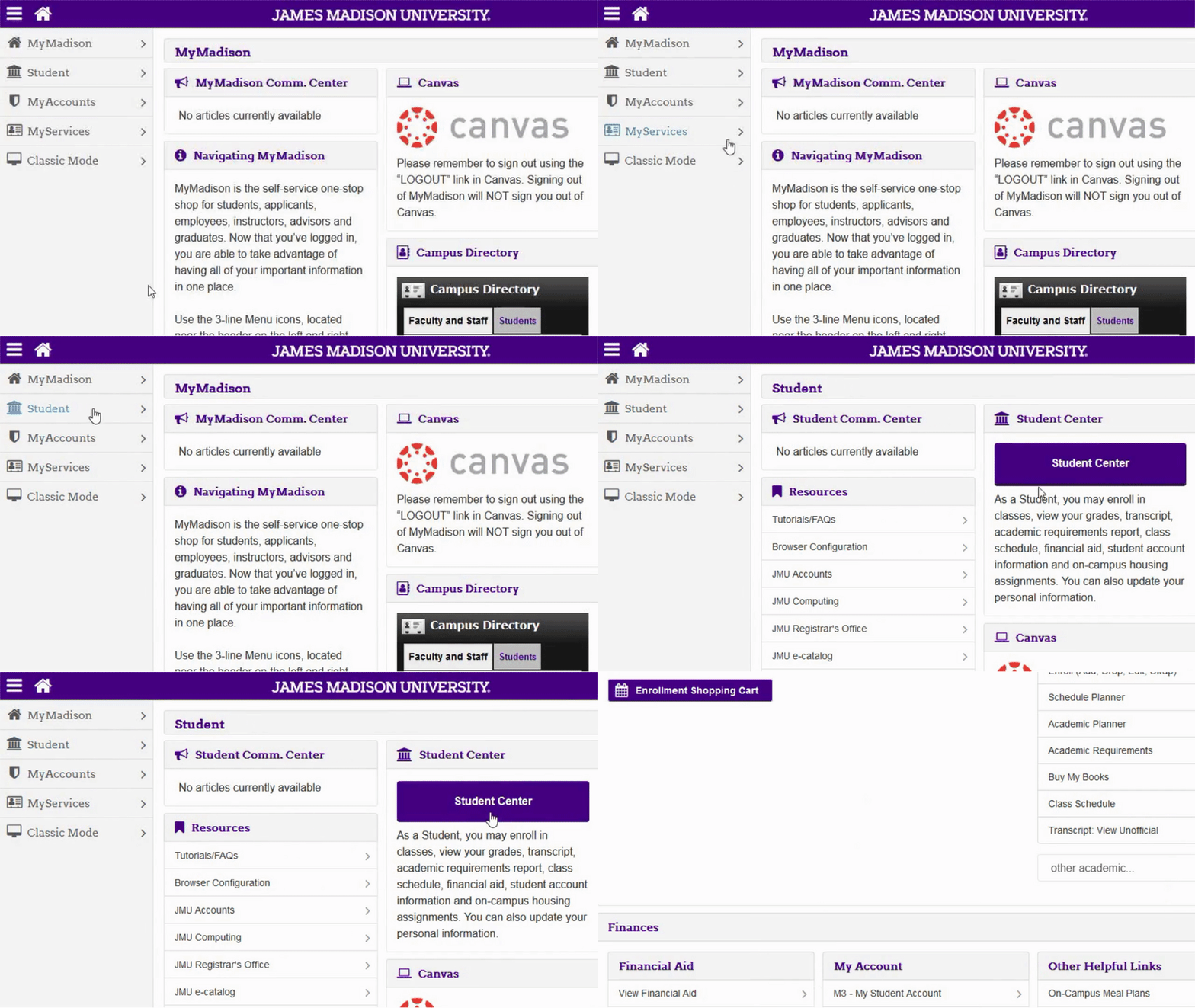
- Log-in to MyMadison (mymadison.jmu.edu).
- Click Student in the list on the left.
- Click the Student Center link.
Accessing the What-If
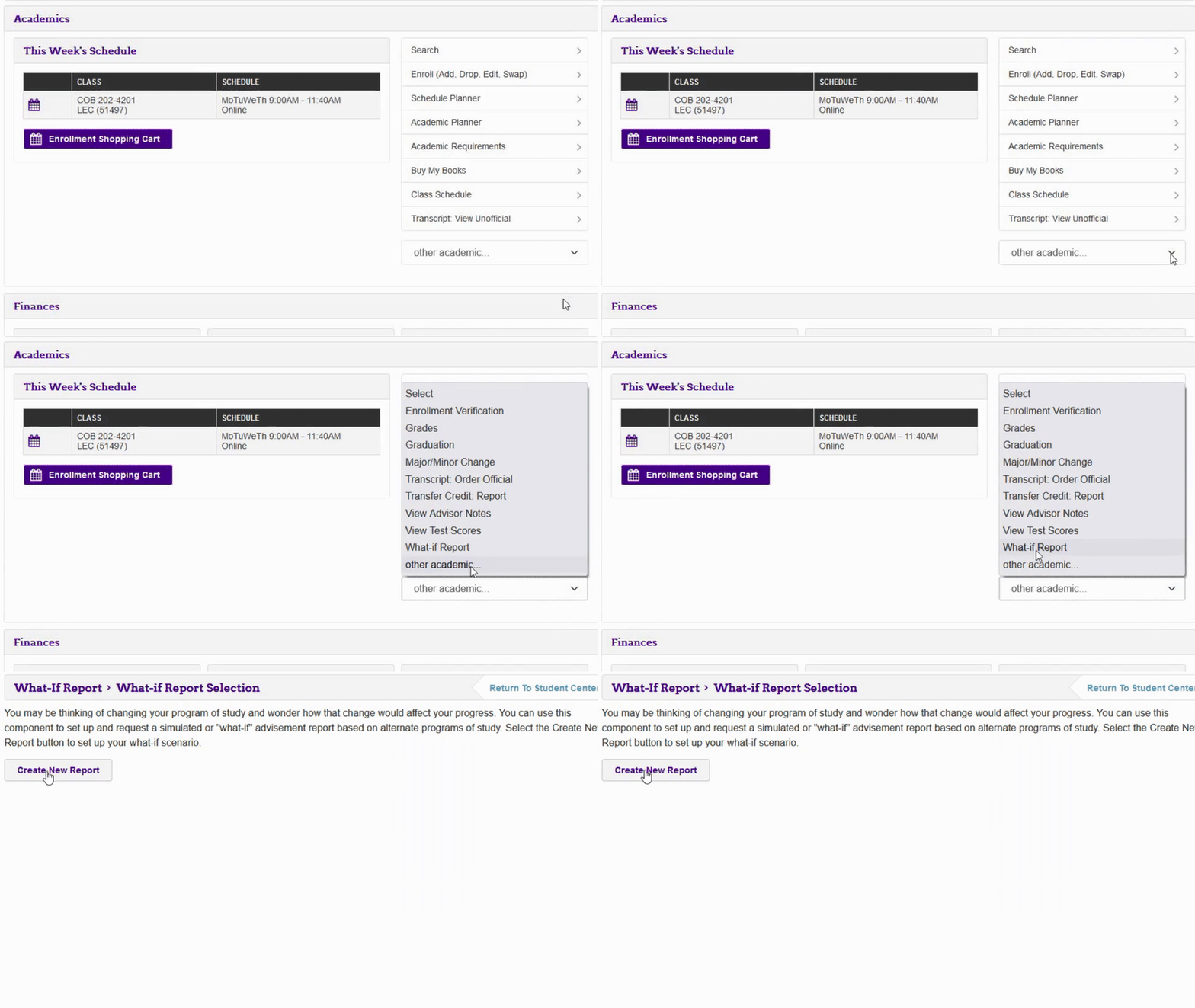
- In the Student Center's academic section, select What-If Report from the other academic dropdown.
- Click Create New Report.
Updating Major/Minor/Concentration for the What-If
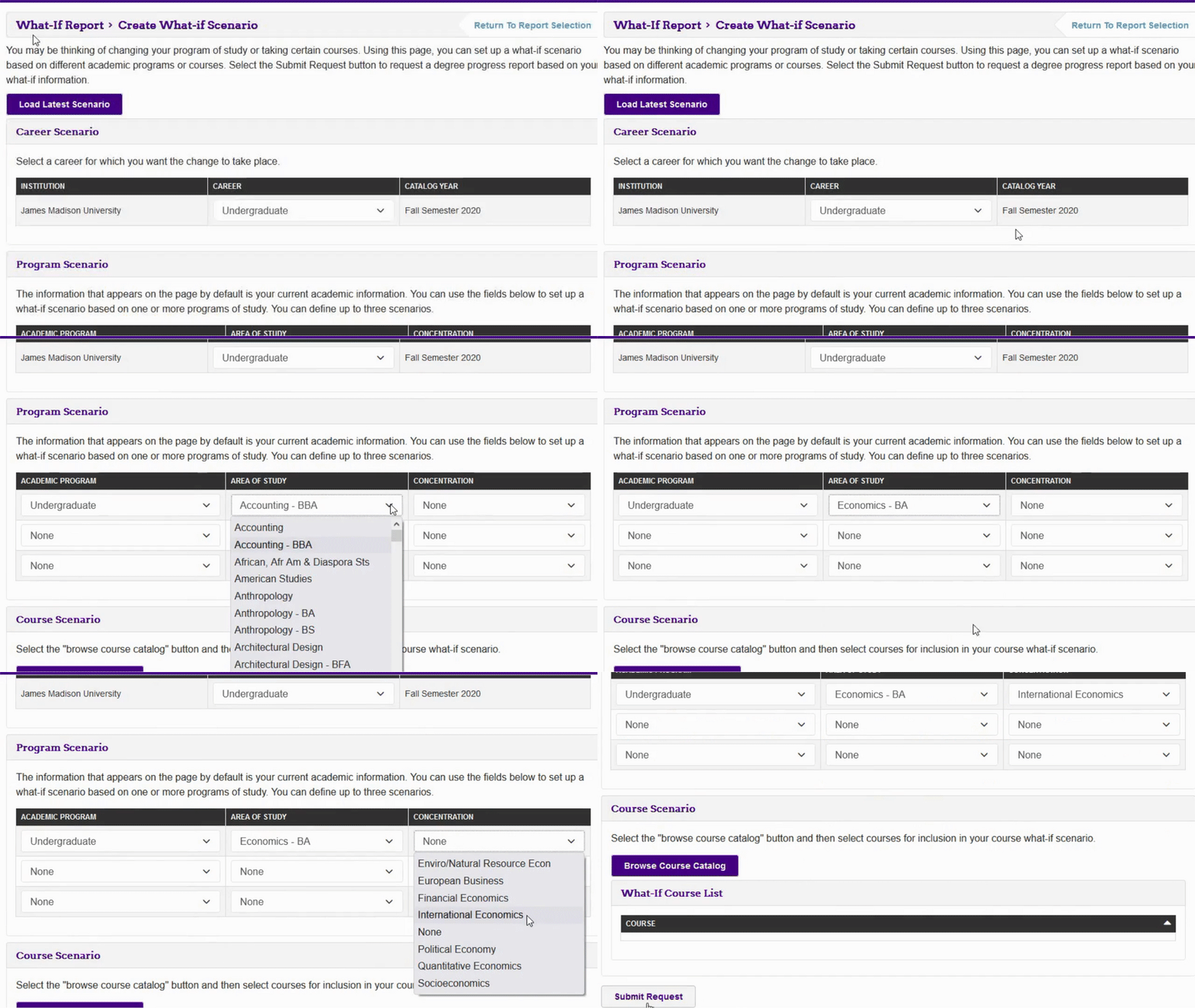
- Update Area of Study by using the dropdowns to replace current major or add a major/minor.
- Update Concentration by using the dropdown to add concentrations within a major.
- Click Submit Request.
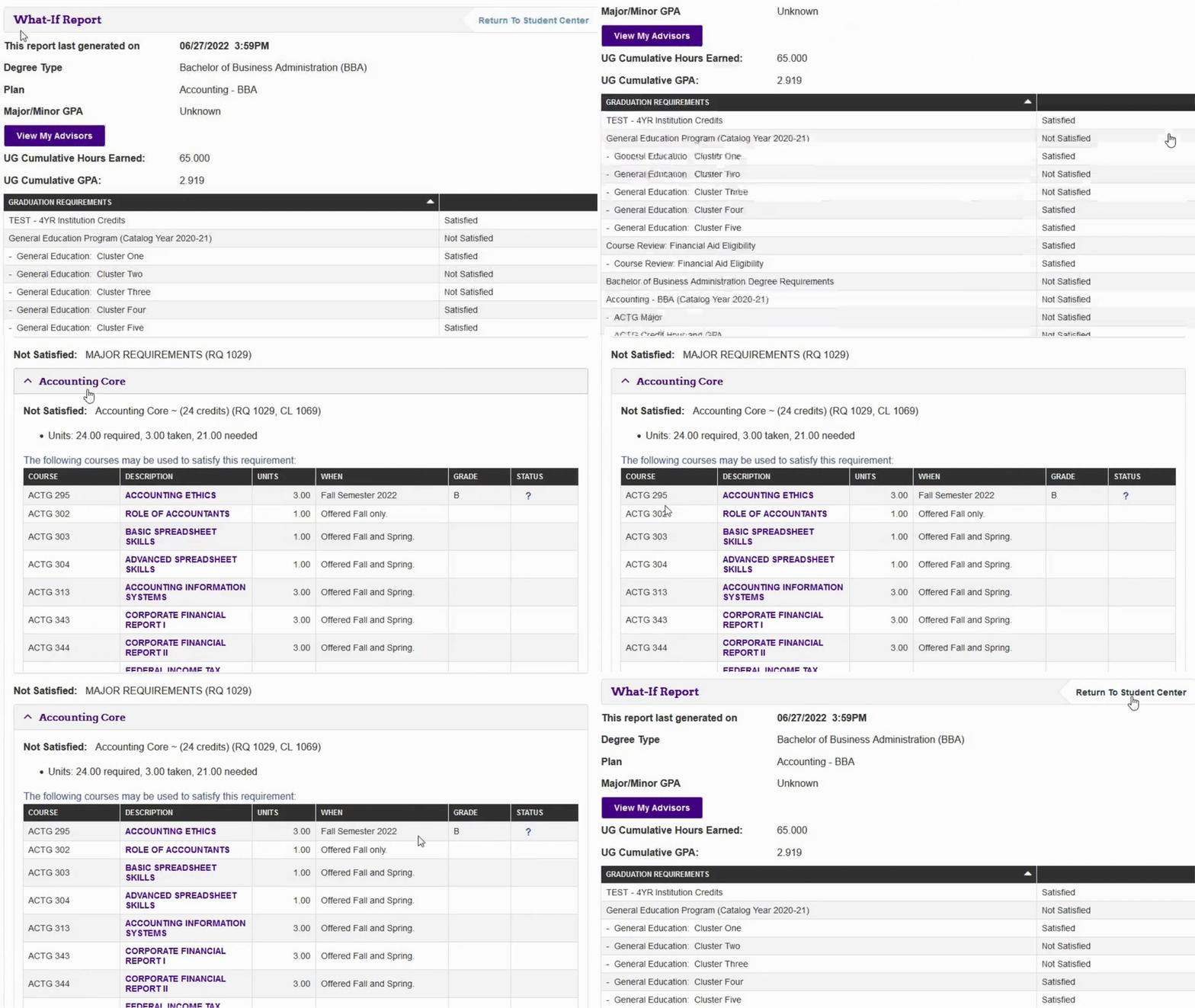
Review What-If Report (Updating Major/Minor/Concentration)
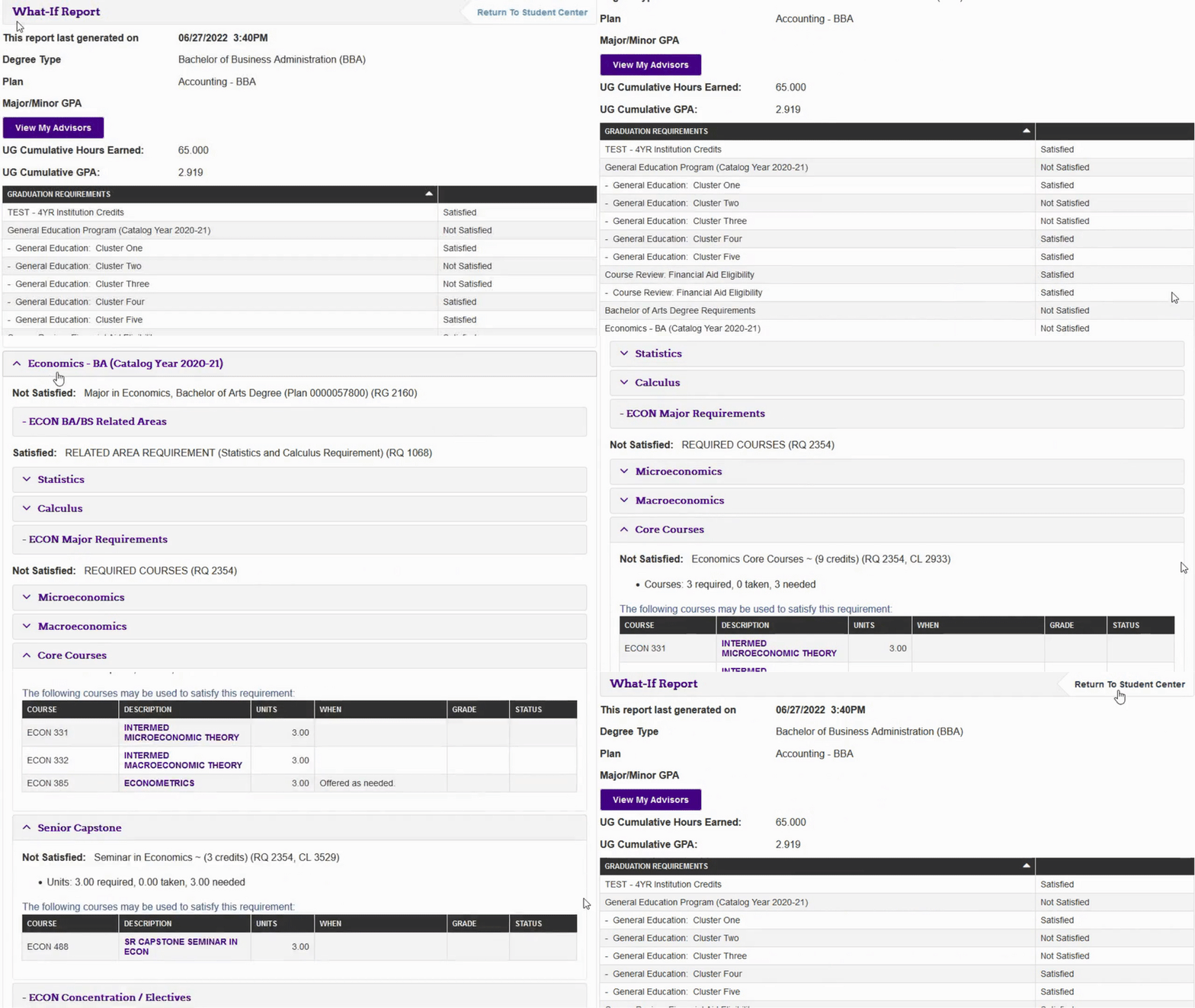
- Review the What-If Report, then select Return to Student Center in the top-right corner.
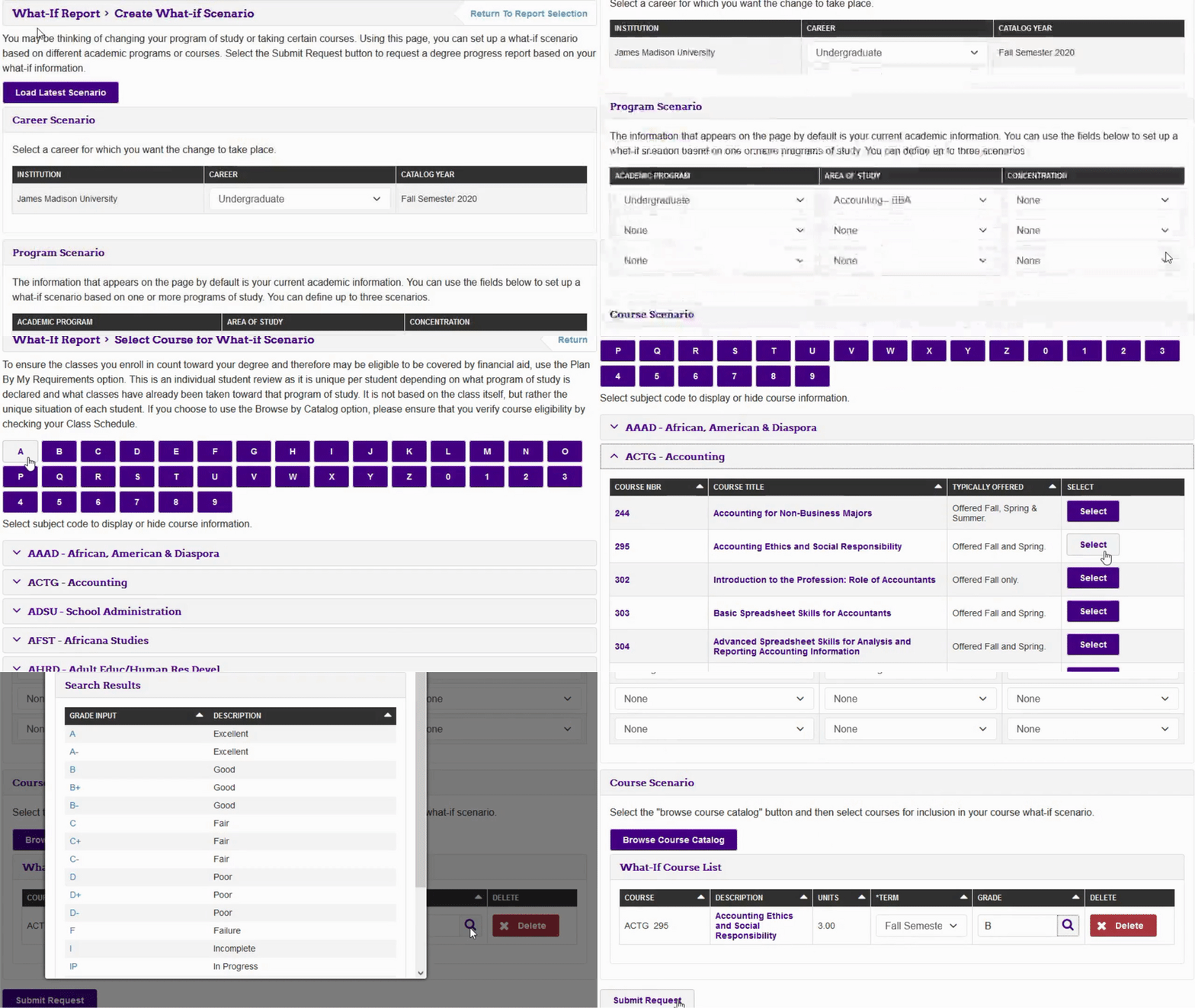
Adding Classes for the What-If
- Click Browse Course Catalog.
- Select the letter the Course Subject begins with.
- Click Select next to the Course Subject to add.
- Select the anticipated Grade. Note: this is important for when there is a required grade for the course.
- Continue the process until you have added all desired courses and grades.
- Click Submit Request.
Review What-If Report (Adding Classes)
- Review the What-If Report, then select Return to Student Center in the top-right corner.
Information Technology


