<?xml version="1.0" encoding="utf-8" ?>
<glossary>
<item>
<term>action link</term>
<definition><p>An element that displays text on a colorful background with an arrow, like a button, with a link and optional image. In the example below, on the left is an <span class="no_tooltip">action link</span> with an image, and on the right are three action links, vertically-stacked, without images. Read more about <a href="https://www.jmu.edu/cascade/docs/pages/multi-block/action-link.shtml"><span class="no_tooltip">action link</span>s.</a></p>
<div class="with-max-width"><img alt="action links image" class="full-width-image" src="/cascade/docs/_images/action-links.png" style="display: block; margin-left: auto; margin-right: auto;"/></div></definition><search>https://cse.google.com/cse?q=%22action+link%22+site%3Awww.jmu.edu%2Fcascade%2Fdocs%2F&amp;cx=016476667732860519677%3Ah7le3e3by1g&amp;ie=UTF-8</search></item>
<item>
<term>another department's tag</term>
<definition><p>If you wish to add <span class="no_tooltip">another department's tag</span> to an <span class="has_tooltip">Article</span> or <span class="no_tooltip">Event</span>, obtain permission from that department first. Then, CC the department contact in an email to <a href="mailto:marketingemail@jmu.edu">marketingemail@jmu.edu</a> to request the <span class="no_tooltip">tag</span> be added.</p></definition><search>https://cse.google.com/cse?q=%22another+department's+tag%22+site%3Awww.jmu.edu%2Fcascade%2Fdocs%2F&amp;cx=016476667732860519677%3Ah7le3e3by1g&amp;ie=UTF-8</search></item>
<item>
<term>anchor</term>
<definition><p>Type of element that can be added to links to direct to a specific section on a <span class="has_tooltip">page</span> rather than the top. Read more about <a href="https://www.jmu.edu/cascade/docs/pages/adding-links.shtml#anchors">anchors</a>.</p></definition><search>https://cse.google.com/cse?q=%22anchor%22+site%3Awww.jmu.edu%2Fcascade%2Fdocs%2F&amp;cx=016476667732860519677%3Ah7le3e3by1g&amp;ie=UTF-8</search></item>
<item>
<term>article</term>
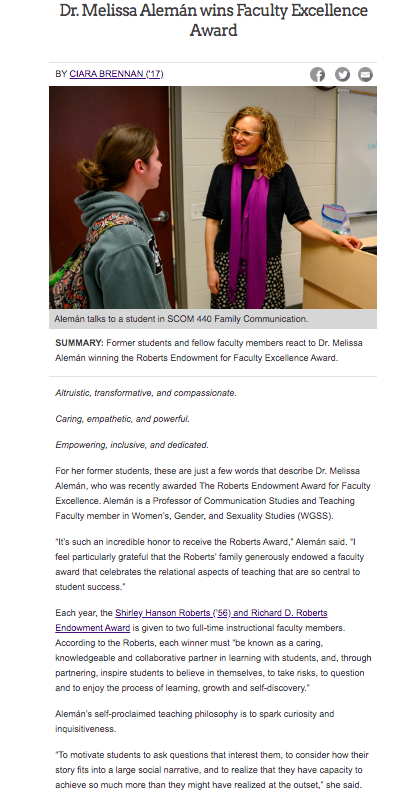
<definition><p>Special type of <span class="has_tooltip">document</span> in Cascade that is used for stories or news. Read more about <a href="https://www.jmu.edu/cascade/docs/articles/index.shtml">articles</a>.</p>
<p class="literal-width-image"><img alt="article example" height="801" src="/cascade/docs/_images/article-example.png" style="display: block; margin-left: auto; margin-right: auto" width="409"/></p></definition><search>https://cse.google.com/cse?q=%22article%22+site%3Awww.jmu.edu%2Fcascade%2Fdocs%2F&amp;cx=016476667732860519677%3Ah7le3e3by1g&amp;ie=UTF-8</search></item>
<item>
<term>block</term>
<definition><p>The actual content that you can create and edit, which gets wired to documents.</p></definition><search>https://cse.google.com/cse?q=%22block%22+site%3Awww.jmu.edu%2Fcascade%2Fdocs%2F&amp;cx=016476667732860519677%3Ah7le3e3by1g&amp;ie=UTF-8</search></item>
<item>
<term>breadcrumb</term>
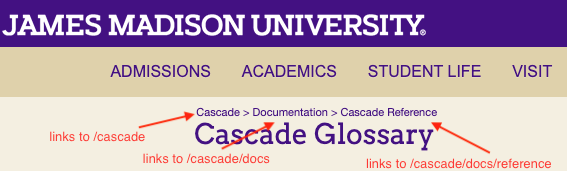
<definition><p>A type of <span class="has_tooltip">navigation</span> that displays the path to a <span class="has_tooltip">page</span> above a <span class="no_tooltip">page</span> title. Read more about <a href="https://www.jmu.edu/cascade/docs/configuration/navigation/index.shtml#breadcrumbs">breadcrumbs</a>.</p>
<div class="with-max-width"><img alt="breadcrumbs example" class="full-width-image" height="183" src="/cascade/docs/_images/breadcrumbs.png" style="display: block; margin-left: auto; margin-right: auto" width="567"/><br/><br/></div></definition><search>https://cse.google.com/cse?q=%22breadcrumb%22+site%3Awww.jmu.edu%2Fcascade%2Fdocs%2F&amp;cx=016476667732860519677%3Ah7le3e3by1g&amp;ie=UTF-8</search></item>
<item>
<term>document</term>
<definition><p>Publishable elements in Cascade including pages, articles, FAQs, events, and <span class="no_tooltip">profile</span> listing pages. Read more about <a href="https://www.jmu.edu/cascade/docs/concepts/creating-documents/index.shtml">documents</a>.</p></definition><search>https://cse.google.com/cse?q=%22document%22+site%3Awww.jmu.edu%2Fcascade%2Fdocs%2F&amp;cx=016476667732860519677%3Ah7le3e3by1g&amp;ie=UTF-8</search></item>
<item>
<term>datatable</term>
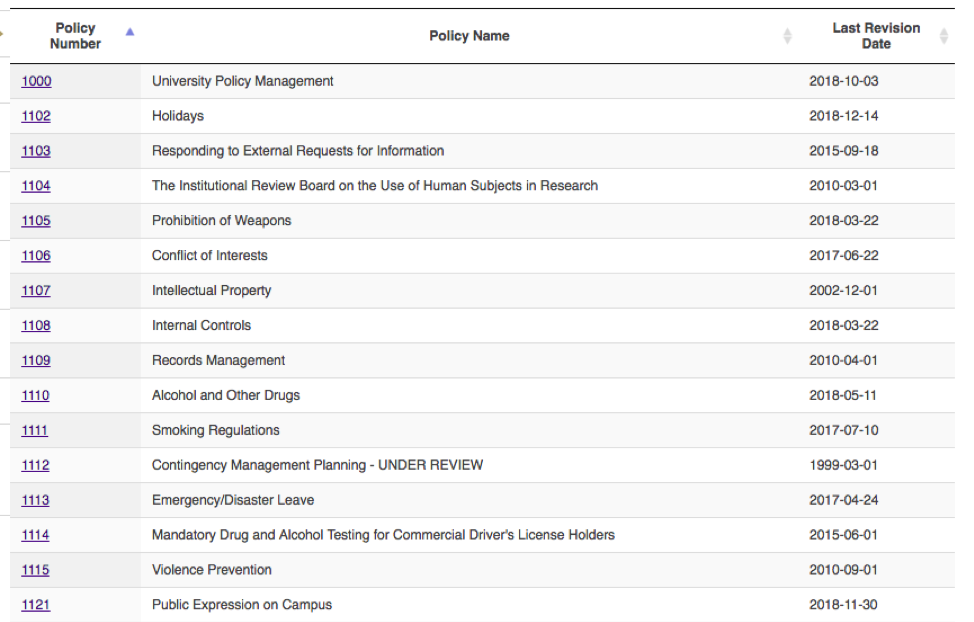
<definition><p><span class="has_tooltip">Responsive</span> <span class="no_tooltip">table</span> elements that display data that can be sorted into multiple columns, searched in all fields, and paginated. Read more about <a href="https://www.jmu.edu/cascade/docs/pages/multi-block/wysiwyg-datatable.shtml">datatables</a>.</p>
<div class="with-max-width"><img alt="datatable example" class="full-width-image" src="/cascade/docs/_images/datatable.png" style="display: block; margin-left: auto; margin-right: auto;"/><br/><br/></div></definition><search>https://cse.google.com/cse?q=%22datatable%22+site%3Awww.jmu.edu%2Fcascade%2Fdocs%2F&amp;cx=016476667732860519677%3Ah7le3e3by1g&amp;ie=UTF-8</search></item>
<item>
<term>event</term>
<definition><p>Special type of <span class="no_tooltip">document</span> for announcing events. Read more about <a href="https://www.jmu.edu/cascade/docs/events/index.shtml">events</a>.</p>
<div class="with-max-width"><img alt="event example" class="full-width-image" height="638" src="/cascade/docs/_images/event-example.png" style="display: block; margin-left: auto; margin-right: auto" width="983"/><br/><br/></div></definition><search>https://cse.google.com/cse?q=%22event%22+site%3Awww.jmu.edu%2Fcascade%2Fdocs%2F&amp;cx=016476667732860519677%3Ah7le3e3by1g&amp;ie=UTF-8</search></item>
<item>
<term>external link</term>
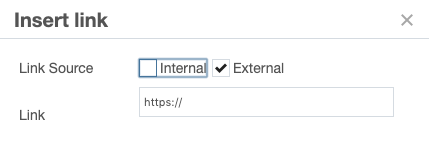
<definition><p>A connection made between two pages by specifying the url of the hyperlinked <span class="has_tooltip">page</span>. In the "Insert Link" dialog, the "External Link" option presents you with a text box where you specify the url of the hyperlinked page:</p>
<p><img alt="external link example" class="literal-width-image" src="/cascade/docs/_images/external_link.png" style="display: block; margin-left: auto; margin-right: auto"/></p>
<p><strong>Note:</strong>&#160;If you specify an <span class="no_tooltip">external link</span> to a <span class="has_tooltip">page</span> and that <span class="no_tooltip">page</span> is moved, renamed, or deleted, the link will be broken. You should only specify external links to pages that are <strong>not</strong> in the Cascade system. If you need a <span class="has_tooltip">page</span> within <a href="https://www.jmu.edu">www.jmu.edu</a>&#160;to be linked and you do not have access to the <span class="no_tooltip">page</span>, please contact <a href="mailto:marketingemail@jmu.edu">marketingemail@jmu.edu</a>&#160;and they will create the <span class="no_tooltip">internal link</span> for you. Read more about <a href="https://www.jmu.edu/cascade/docs/pages/adding-links.shtml#adding">external links.</a></p>
<p>Also see <a class="no_tooltip" href="https://www.jmu.edu/cascade/docs/reference/glossary/index.shtml#tooltip_internal_link" rel="noopener" target="_blank">internal link</a>.</p></definition><search>https://cse.google.com/cse?q=%22external+link%22+site%3Awww.jmu.edu%2Fcascade%2Fdocs%2F&amp;cx=016476667732860519677%3Ah7le3e3by1g&amp;ie=UTF-8</search></item>
<item>
<term>faq</term>
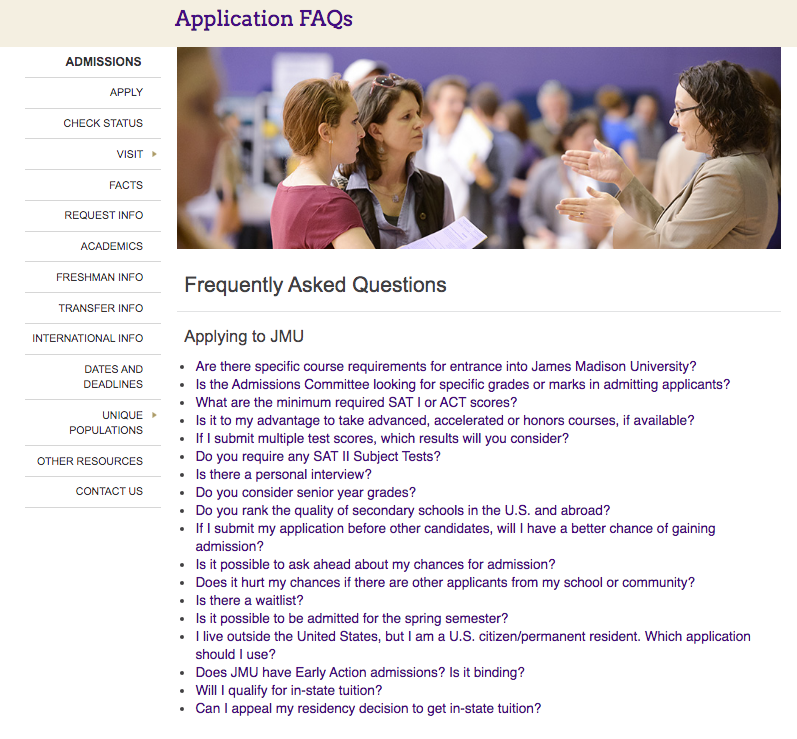
<definition><p>Special type of <span class="has_tooltip">document</span> for addressing frequently asked questions. Read more about <a href="https://www.jmu.edu/cascade/docs/faqs/index.shtml">FAQs.</a></p>
<div class="with-max-width"><img alt="faq example.png" class="full-width-image" src="/cascade/docs/_images/faq-example.png"/><br/><br/></div></definition><search>https://cse.google.com/cse?q=%22faq%22+site%3Awww.jmu.edu%2Fcascade%2Fdocs%2F&amp;cx=016476667732860519677%3Ah7le3e3by1g&amp;ie=UTF-8</search></item>
<item>
<term>feed</term>
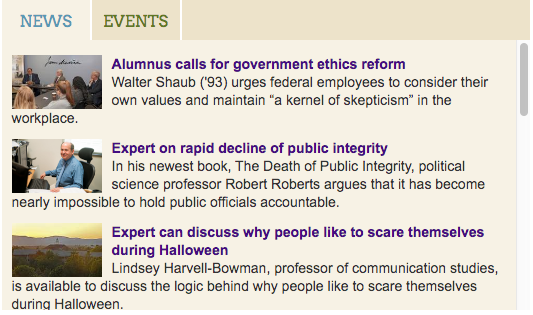
<definition><p>Feeds are ways to display Articles, Events, WYSIWYGS, or links in a section on a <span class="no_tooltip">page</span>. There are multiple styles of feeds to choose from. Read more about <a href="https://www.jmu.edu/cascade/docs/pages/other-blocks/feeds/index.shtml">feeds</a>.</p>
<p class="literal-width-image"><img alt="feed example" src="/cascade/docs/_images/feed-example.png" style="display: block; margin-left: auto; margin-right: auto"/></p></definition><search>https://cse.google.com/cse?q=%22feed%22+site%3Awww.jmu.edu%2Fcascade%2Fdocs%2F&amp;cx=016476667732860519677%3Ah7le3e3by1g&amp;ie=UTF-8</search></item>
<item>
<term>folder</term>
<definition><p>Folders are used as organizational tools in Cascade to separate documents and content. Special folders have underscores and have specific uses. Read more about <a href="https://www.jmu.edu/cascade/docs/concepts/folders/index.shtml">folders</a>.</p></definition><search>https://cse.google.com/cse?q=%22folder%22+site%3Awww.jmu.edu%2Fcascade%2Fdocs%2F&amp;cx=016476667732860519677%3Ah7le3e3by1g&amp;ie=UTF-8</search></item>
<item>
<term>format</term>
<definition><p>Formats tell Cascade how to render content on a <span class="no_tooltip">page</span>. They are created by ITWeb and are not editable. Read more about <a href="https://www.jmu.edu/cascade/docs/pages/multi-block/wiring.shtml#formats" target="_new">formats</a>.</p></definition><search>https://cse.google.com/cse?q=%22format%22+site%3Awww.jmu.edu%2Fcascade%2Fdocs%2F&amp;cx=016476667732860519677%3Ah7le3e3by1g&amp;ie=UTF-8</search></item>
<item>
<term>grid cell</term>
<definition><p>Grid cells separate and control the width of types of content within multi-blocks, including Action Links, Link Lists, <span class="has_tooltip">WYSIWYG</span> content, and videos. Read more about <a href="https://www.jmu.edu/cascade/docs/pages/multi-block/creating.shtml#step-three">grid cells</a>.</p></definition><search>https://cse.google.com/cse?q=%22grid+cell%22+site%3Awww.jmu.edu%2Fcascade%2Fdocs%2F&amp;cx=016476667732860519677%3Ah7le3e3by1g&amp;ie=UTF-8</search></item>
<item>
<term>internal link</term>
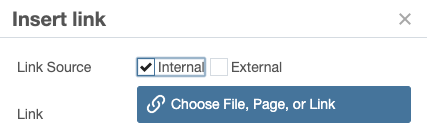
<definition><p>A connection made between two files, using a dialog box to choose the connected file.&#160; For example, when creating a hyperlink between two pages, you have the option of specifying an "Internal" or "External" link.&#160; The "Internal Link" option presents you with this dialog box in which you browse to the other <span class="no_tooltip">page</span> to choose it:</p>
<p><img alt="internal link example" class="literal-width-image" src="/cascade/docs/_images/internal_link.png" style="display: block; margin-left: auto; margin-right: auto"/></p>
<p><strong>Note:&#160;</strong>If you specify an <span class="no_tooltip">internal link</span> to a <span class="has_tooltip">page</span> and that linked <span class="no_tooltip">page</span> is moved, renamed, or deleted, the link will not be broken as long as you republish the <span class="no_tooltip">page</span> that has the link.&#160; For example, if <span class="no_tooltip">page</span> "A" internally links to <span class="no_tooltip">page</span> "B" and <span class="no_tooltip">page</span> "B" is renamed to "C", then all you have to do is republish <span class="no_tooltip">page</span> "A" and it will automatically update the link in <span class="no_tooltip">page</span> "A" to point to <span class="no_tooltip">page</span> "C".&#160; You should always specify internal links to pages that are in the Cascade system.&#160; If you need a <span class="no_tooltip">page</span> within www.jmu.edu&#160;to be linked and you do not have access to the <span class="no_tooltip">page</span>, do not create an <span class="no_tooltip">external link</span>.&#160; Please contact itweb@jmu.edu&#160;and they will create the <span class="no_tooltip">internal link</span> for you. Read more about <a href="https://www.jmu.edu/cascade/docs/pages/adding-links.shtml#adding">internal links</a>.</p>
<p>Also see <a class="no_tooltip" href="https://www.jmu.edu/cascade/docs/reference/glossary/index.shtml#tooltip_external_link" rel="noopener" target="_blank">external link</a>.</p></definition><search>https://cse.google.com/cse?q=%22internal+link%22+site%3Awww.jmu.edu%2Fcascade%2Fdocs%2F&amp;cx=016476667732860519677%3Ah7le3e3by1g&amp;ie=UTF-8</search></item>
<item>
<term>link list</term>
<definition><p>Lists of links used to display links that are grouped together. Link lists are created within multi-blocks. Read more about <a href="https://www.jmu.edu/cascade/docs/pages/multi-block/link-list.shtml">link lists</a>.</p>
<div class="with-max-width"><img alt="link lists example" class="full-width-image" src="/cascade/docs/_images/linklists.png" style="display: block; margin-left: auto; margin-right: auto"/><br/><br/></div></definition><search>https://cse.google.com/cse?q=%22link+list%22+site%3Awww.jmu.edu%2Fcascade%2Fdocs%2F&amp;cx=016476667732860519677%3Ah7le3e3by1g&amp;ie=UTF-8</search></item>
<item>
<term>multi-block</term>
<definition><p><span>Type of <span class="no_tooltip">Block</span> that can have one or more grid cells, which can include Action Links, Link Lists, <span class="has_tooltip">WYSIWYG</span> content, and videos.&#160;</span>Read more about <a href="https://www.jmu.edu/cascade/docs/pages/multi-block/index.shtml">multi-blocks</a>.</p></definition><search>https://cse.google.com/cse?q=%22multi-block%22+site%3Awww.jmu.edu%2Fcascade%2Fdocs%2F&amp;cx=016476667732860519677%3Ah7le3e3by1g&amp;ie=UTF-8</search></item>
<item>
<term>navigation</term>
<definition><p>Left <span class="no_tooltip">navigation</span> appears on every <span class="has_tooltip">page</span> and controls what pages are displayed as links. A site's <span class="no_tooltip">navigation</span> is publishable through an <span class="has_tooltip">SSI</span> <span class="no_tooltip">page</span>. Read more about <a class="no_tooltip" href="https://www.jmu.edu/cascade/docs/configuration/navigation/index.shtml">navigation</a>.</p>
<div class="with-max-width"><img alt="left navigation example" class="full-width-image" src="/cascade/docs/_images/nav4.png"/><br/><br/></div></definition><search>https://cse.google.com/cse?q=%22navigation%22+site%3Awww.jmu.edu%2Fcascade%2Fdocs%2F&amp;cx=016476667732860519677%3Ah7le3e3by1g&amp;ie=UTF-8</search></item>
<item>
<term>page</term>
<definition><p>Pages are the components that become webpages; they are <span class="has_tooltip">responsive</span> by default and contain different elements that make it a complete webpage. Read more about <a href="https://www.jmu.edu/cascade/docs/pages/index.shtml">pages</a>.</p>
<div class="with-max-width"><img alt="page example" class="full-width-image" src="/cascade/docs/_images/page-example.png"/><br/><br/></div></definition><search>https://cse.google.com/cse?q=%22page%22+site%3Awww.jmu.edu%2Fcascade%2Fdocs%2F&amp;cx=016476667732860519677%3Ah7le3e3by1g&amp;ie=UTF-8</search></item>
<item>
<term>profile</term>
<definition><p>Profiles are special documents that contain information about faculty/staff, and are displayed on <span class="no_tooltip">Profile</span> Listing Pages. Read more about <a href="https://www.jmu.edu/cascade/docs/profiles/index.shtml">profiles</a>.</p></definition><search>https://cse.google.com/cse?q=%22profile%22+site%3Awww.jmu.edu%2Fcascade%2Fdocs%2F&amp;cx=016476667732860519677%3Ah7le3e3by1g&amp;ie=UTF-8</search></item>
<item>
<term>profile listing page</term>
<definition><p>a <span class="no_tooltip">page</span> that displays the links to and <span class="no_tooltip">profile</span> images of all profiles and sorts profiles by faculty or staff when the profiles are tagged and/or wired to it. Read more about <a href="https://www.jmu.edu/cascade/docs/profiles/index.shtml#creating"><span class="no_tooltip">profile</span> listing pages.</a></p>
<div class="with-max-width"><img alt="profile listing page example pdf" class="full-width-image" height="640" src="/cascade/docs/_images/profile-listing-page-example-pdf1.png" width="1044"/><br/><br/></div></definition><search>https://cse.google.com/cse?q=%22profile+listing+page%22+site%3Awww.jmu.edu%2Fcascade%2Fdocs%2F&amp;cx=016476667732860519677%3Ah7le3e3by1g&amp;ie=UTF-8</search></item>
<item>
<term>region</term>
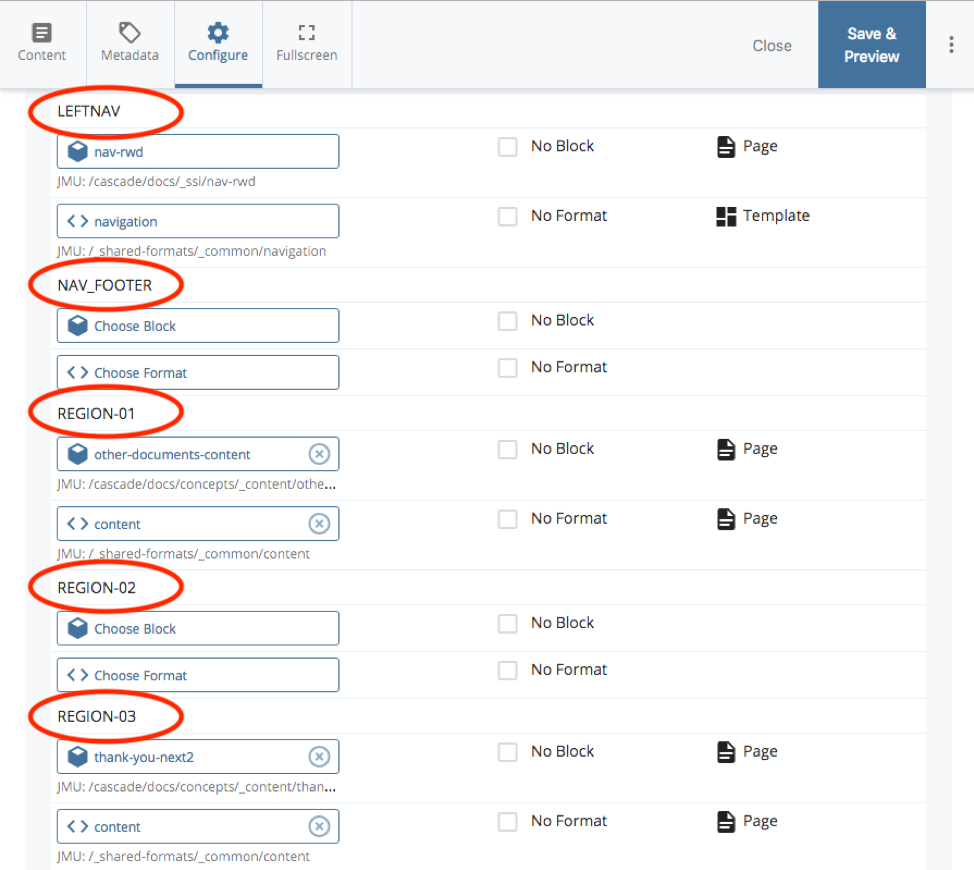
<definition><p>Regions are connected to <span class="no_tooltip">page</span> layout and control where information displays on a <span class="has_tooltip">page</span>. Blocks and formats are placed in Regions. Read more about <a href="https://www.jmu.edu/cascade/docs/pages/multi-block/wiring.shtml#regions">regions</a>.</p>
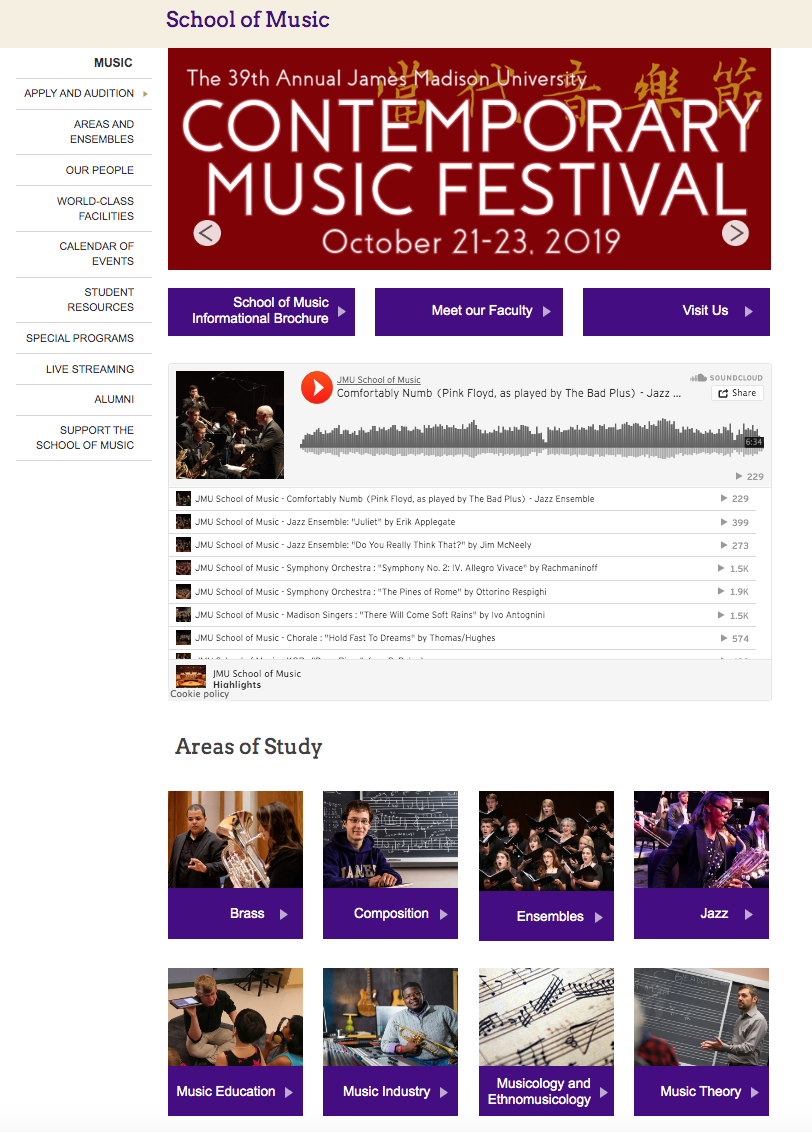
<div class="with-max-width"><img alt="config regions" class="full-width-image" src="/cascade/docs/_images/config-regions.png"/><br/><br/></div></definition><search>https://cse.google.com/cse?q=%22region%22+site%3Awww.jmu.edu%2Fcascade%2Fdocs%2F&amp;cx=016476667732860519677%3Ah7le3e3by1g&amp;ie=UTF-8</search></item>
<item>
<term>responsive</term>
<definition><p><span class="no_tooltip">Responsive</span> (or RWD) means that an element/document will adapt to the size of the screen the user is viewing it on, providing optimal viewing and interaction experiences for users on devices of different screen size.</p></definition><search>https://cse.google.com/cse?q=%22responsive%22+site%3Awww.jmu.edu%2Fcascade%2Fdocs%2F&amp;cx=016476667732860519677%3Ah7le3e3by1g&amp;ie=UTF-8</search></item>
<item>
<term>site</term>
<definition><p>This is the container of every department <a class="no_tooltip" href="https://www.jmu.edu/cascade/docs/reference/glossary/index.shtml#tooltip_website" rel="noopener" target="_blank">website</a> at JMU.</p></definition><search>https://cse.google.com/cse?q=%22site%22+site%3Awww.jmu.edu%2Fcascade%2Fdocs%2F&amp;cx=016476667732860519677%3Ah7le3e3by1g&amp;ie=UTF-8</search></item>
<item>
<term>sitemap</term>
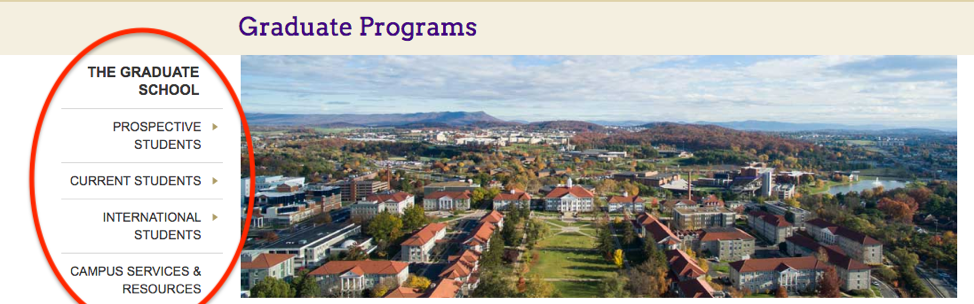
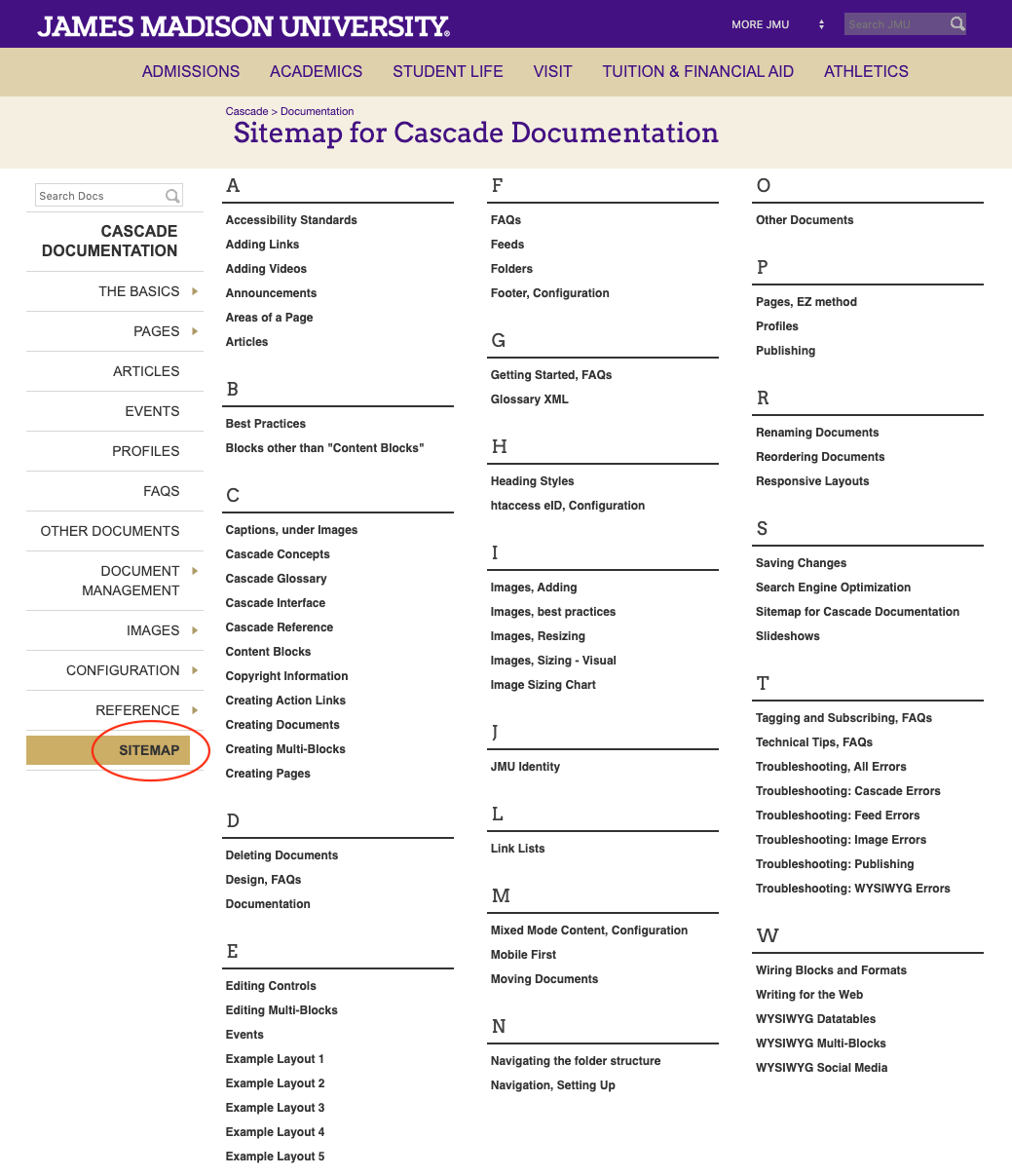
<definition><p>A <span class="no_tooltip">Sitemap</span> is a <span class="no_tooltip">page</span> on your <span class="no_tooltip">website</span> that lists all of the pages on your <span class="no_tooltip">website</span>, alphabetically, by their Display Name.&#160; The link to the <span class="no_tooltip">Sitemap</span> <span class="no_tooltip">page</span> should be at the bottom of your <span class="has_tooltip">navigation</span> (see the red circle below).&#160; Please contact <a href="mailto:marketingemail@jmu.edu">marketingemail@jmu.edu</a>&#160;if you would like a <span class="no_tooltip">Sitemap</span> added to your <span class="has_tooltip">website</span>.</p>
<div class="with-max-width" style="text-align: center;"><img alt="sitemap example" class="full-width-image" src="/cascade/docs/_images/sitemap.png"/></div></definition><search>https://cse.google.com/cse?q=%22sitemap%22+site%3Awww.jmu.edu%2Fcascade%2Fdocs%2F&amp;cx=016476667732860519677%3Ah7le3e3by1g&amp;ie=UTF-8</search></item>
<item>
<term>slideshow</term>
<definition><p>Slideshows are a type of <span class="has_tooltip">Block</span> that display images that can be clicked through, with optional text overlay/ links. Read more about <a href="https://www.jmu.edu/cascade/docs/pages/other-blocks/slideshow/index.shtml">slideshows</a>.</p>
<p>&#160;</p></definition><search>https://cse.google.com/cse?q=%22slideshow%22+site%3Awww.jmu.edu%2Fcascade%2Fdocs%2F&amp;cx=016476667732860519677%3Ah7le3e3by1g&amp;ie=UTF-8</search></item>
<item>
<term>spot</term>
<definition><p>Spots are images in <span class="has_tooltip">multi-block</span> <span class="has_tooltip">WYSIWYG</span> fields with links. They draw attention and can function like advertisements when used sparingly. Read more about <a href="https://www.jmu.edu/cascade/docs/images/adding.shtml#spot"><span class="no_tooltip">spot</span> images</a>.</p>
<div class="with-max-width"><img alt="example image spot" class="full-width-image" src="/cascade/docs/_images/spot.png"/><br/><br/></div></definition><search>https://cse.google.com/cse?q=%22spot%22+site%3Awww.jmu.edu%2Fcascade%2Fdocs%2F&amp;cx=016476667732860519677%3Ah7le3e3by1g&amp;ie=UTF-8</search></item>
<item>
<term>ssi</term>
<definition><p><span class="no_tooltip">SSI</span> stands for Server Side Include. <span class="no_tooltip">SSI</span> is a way of adding the same information to an entire <span class="no_tooltip">website</span>. Example of this include global headers, global footers, and <span class="no_tooltip">navigation</span>.</p></definition><search>https://cse.google.com/cse?q=%22ssi%22+site%3Awww.jmu.edu%2Fcascade%2Fdocs%2F&amp;cx=016476667732860519677%3Ah7le3e3by1g&amp;ie=UTF-8</search></item>
<item>
<term>table</term>
<definition><p>Tables can be easily added in any <span class="has_tooltip">WYSIWYG</span> content field using the "Table" drop-down. Tables can have any number of columns and rows, and are useful for displaying small amounts of data.</p></definition><search>https://cse.google.com/cse?q=%22table%22+site%3Awww.jmu.edu%2Fcascade%2Fdocs%2F&amp;cx=016476667732860519677%3Ah7le3e3by1g&amp;ie=UTF-8</search></item>
<item>
<term>tag</term>
<definition>a label that identifies Articles, Events, and Profiles based on its content and indicates which feeds the Articles, Events, or Profiles should appear in.&#160;<span>For example, an <span class="has_tooltip">Article</span> with a "JMU Home" <span class="no_tooltip">tag</span> will appear on the JMU homepage and the JMU News homepage. An "education" <span class="no_tooltip">tag</span> will make the <span class="no_tooltip">Article</span> appear on the Education topic <span class="no_tooltip">page</span>, just as a "business" <span class="no_tooltip">tag</span> would make it appear on the Business topic <span class="no_tooltip">page</span>. Read more about <a href="https://www.jmu.edu/cascade/docs/articles/index.shtml#arttag">tagging Articles</a>, <a href="https://www.jmu.edu/cascade/docs/events/index.shtml">tagging Events</a>, <a href="https://www.jmu.edu/cascade/docs/profiles/index.shtml#tag">tagging Profiles</a>, and <a href="https://www.jmu.edu/cascade/docs/pages/other-blocks/feeds/index.shtml">creating <span class="no_tooltip">feed</span> blocks</a>.</span></definition><search>https://cse.google.com/cse?q=%22tag%22+site%3Awww.jmu.edu%2Fcascade%2Fdocs%2F&amp;cx=016476667732860519677%3Ah7le3e3by1g&amp;ie=UTF-8</search></item>
<item>
<term>third</term>
<definition><p>A "third" refers to the size of an image, which should take up a <span class="no_tooltip">third</span> of the width on <span class="has_tooltip">page</span> at desktop resolution. In a <span class="has_tooltip">multi-block</span>, an image in a 1/3 width <span class="has_tooltip">grid cell</span> must be the size of a <span class="no_tooltip">third</span>.</p></definition><search>https://cse.google.com/cse?q=%22third%22+site%3Awww.jmu.edu%2Fcascade%2Fdocs%2F&amp;cx=016476667732860519677%3Ah7le3e3by1g&amp;ie=UTF-8</search></item>
<item>
<term>video</term>
<definition><p>Facebook, YouTube, and Vimeo videos can be added to your <span class="no_tooltip">website</span> on EZ Pages or in multi-blocks. Read more about <a href="https://www.jmu.edu/cascade/docs/pages/multi-block/video.shtml">videos</a>.</p></definition><search>https://cse.google.com/cse?q=%22video%22+site%3Awww.jmu.edu%2Fcascade%2Fdocs%2F&amp;cx=016476667732860519677%3Ah7le3e3by1g&amp;ie=UTF-8</search></item>
<item>
<term>website</term>
<definition><p>A <span class="no_tooltip">website</span> consists of all the documents in a <span class="no_tooltip">folder</span> which resides at the "root level" of the JMU <span class="no_tooltip">site</span>. For example, <strong>https://www.jmu.edu/academics</strong>&#160;is the "academics" <span class="no_tooltip">website</span>, and in Cascade, it resides in the <span class="no_tooltip">folder</span> named "admissions" at the root of the JMU <a class="no_tooltip" href="https://www.jmu.edu/cascade/docs/reference/glossary/index.shtml#tooltip_site" rel="noopener" target="_blank">site</a>.&#160; However <strong>https://www.jmu.edu/admissions/undergraduate</strong>&#160;is NOT a <span class="no_tooltip">website</span>, since it does not reside at the root level of the JMU <span class="no_tooltip">site</span>.&#160; In this case, the "undergraduate" <span class="no_tooltip">folder</span> resides in the "admissions" <span class="no_tooltip">website</span>, which resides in the JMU "<a class="no_tooltip" href="https://www.jmu.edu/cascade/docs/reference/glossary/index.shtml#tooltip_site" rel="noopener" target="_blank">site</a>".</p>
<p>QUIZ QUESTION: In the url <strong>https://www.jmu.edu/cascade/docs</strong>,&#160;what is the "website"?</p>
<p>ANSWER: The <span class="no_tooltip">website</span> is "cascade" since it is the root <span class="no_tooltip">folder</span>.&#160; The "docs" <span class="has_tooltip">folder</span> is not the <span class="no_tooltip">website</span> since it is not the root <span class="no_tooltip">folder</span>.</p></definition><search>https://cse.google.com/cse?q=%22website%22+site%3Awww.jmu.edu%2Fcascade%2Fdocs%2F&amp;cx=016476667732860519677%3Ah7le3e3by1g&amp;ie=UTF-8</search></item>
<item>
<term>wiring</term>
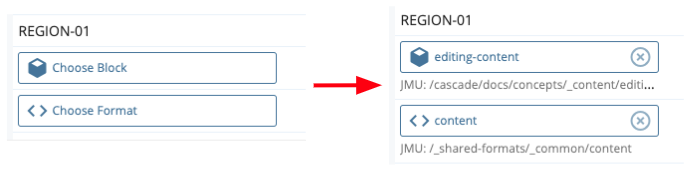
<definition><p>Specifying Blocks and Formats in a <span class="has_tooltip">Region</span> is called "wiring" the content. Read more about <a class="no_tooltip" href="https://www.jmu.edu/cascade/docs/pages/multi-block/wiring.shtml">wiring</a>.</p>
<div class="with-max-width"><img alt="how to wire" class="full-width-image" src="/cascade/docs/_images/wiring.png" style="display: block; margin-left: auto; margin-right: auto"/></div></definition><search>https://cse.google.com/cse?q=%22wiring%22+site%3Awww.jmu.edu%2Fcascade%2Fdocs%2F&amp;cx=016476667732860519677%3Ah7le3e3by1g&amp;ie=UTF-8</search></item>
<item>
<term>wysiwyg</term>
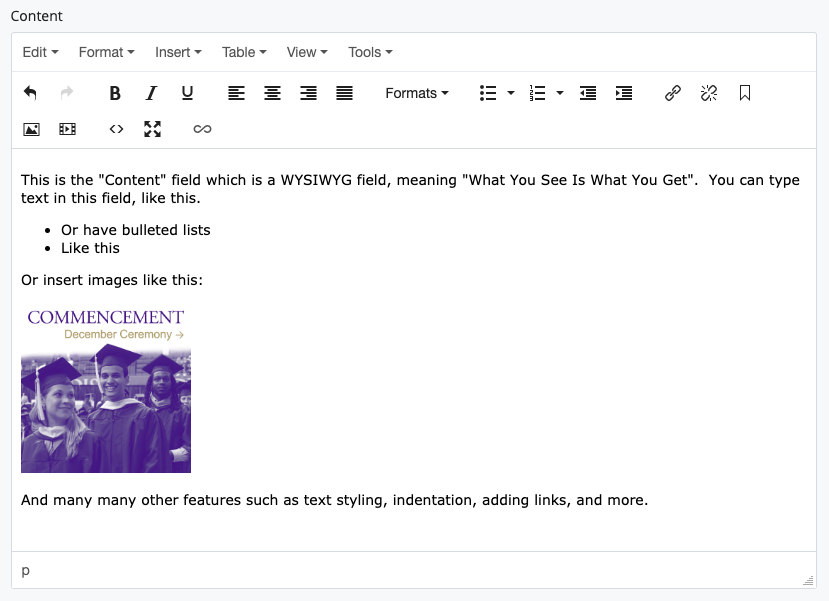
<definition><p><span class="no_tooltip">WYSIWYG</span> stands for What You See Is What You Get. The <span class="no_tooltip">WYSIWYG</span> editor in Cascade allows users to add links, images, and text in the Content field, which looks similar to the way it will appear when published.&#160; Here is what a <span class="no_tooltip">WYSIWYG</span> field looks like with the content looking all pretty inside without having to type any HTML code. Read more about <a href="https://www.jmu.edu/cascade/docs/pages/multi-block/wysiwyg.shtml"><span class="no_tooltip">WYSIWYG</span>s</a>.</p>
<div class="with-max-width"><img alt="wysiwyg field example" class="full-width-image" src="/cascade/docs/_images/wysiwyg-field.png" style="display: block; margin-left: auto; margin-right: auto"/></div></definition><search>https://cse.google.com/cse?q=%22wysiwyg%22+site%3Awww.jmu.edu%2Fcascade%2Fdocs%2F&amp;cx=016476667732860519677%3Ah7le3e3by1g&amp;ie=UTF-8</search></item>
</glossary>