

Okta FastPass Has Arrived
Information Technology-Computing



Last week, Information Technology enabled Okta FastPass for the JMU community as an optional way to sign into JMU systems. Since the change, you may have noticed an updated Okta sign-in screen, which includes the option to Sign in with Okta FastPass. The first time you click this button on each of your devices, Okta will lead you through the steps necessary to use it.
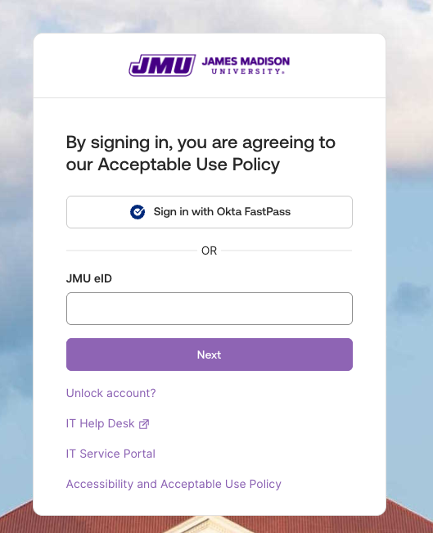
Why might you want to use FastPass? Primarily, it’s a “passwordless” sign-in experience, so it is typically faster than a traditional sign-in. If you set up FastPass on your computer, not only do you save time typing, but you won’t have to pull your phone or Yubikey out of your pocket to complete authentication.
For instructions to set up Okta FastPass on a computer, see the links below:
- Steps for JMU-owned computers (requires an employee login to view)
- Steps for personal computers (requires a JMU login to view)
Please note that using FastPass on a computer requires a few things that aren’t available from shared devices on JMU’s campus, like lab computers. To use shared devices, you will need to use another device such as a Yubikey or Okta Verify on your phone to complete sign-in.
As a final caveat, please note that it is possible, but highly discouraged, for you to enroll a home or office computer as your only device/authenticator in Okta. For many reasons, you should always enroll another device, such as a phone with Okta Verify or a Yubikey. The most obvious reason is convenience because if your computer is your only device in Okta, then you will practically only be able to use JMU systems from that computer until you add a second device. However, the most important reason you should register multiple authenticators in Okta is because it prevents you from being locked out when all of your authenticators are unavailable (also remember this recommendation any time you are getting a new phone). In that scenario, you must call or visit the IT Help Desk to verify your identity to regain access to JMU systems.
If you have any questions about FastPass or need assistance configuring it, please contact the IT Help Desk at (540) 568-3555 or helpdesk@jmu.edu.


